Quick Start - Installing the Workbench with Binary Files
The AI DBA Workbench collects metrics from PostgreSQL servers, evaluates alert rules, and displays results in a web interface. This guide covers setting up the complete pgEdge AI DBA Workbench using pre-built binaries available from the pgEdge GitHub repository.
Before you deploy the Workbench, confirm the following prerequisites are in place on a supported operating system and platform:
- PostgreSQL 14 or later is installed for the Workbench datastore.
- The database credentials for the datastore database are available.
- Network access exists between each monitored PostgreSQL server and the system hosting the Workbench.
Installing the Binaries
Download the latest release from the GitHub releases page. The release archive includes the collector, server, and alerter binaries and pre-built web client files:
- ai-dba-collector-linux-arm64.tar.gz
- ai-dba-server-linux-arm64.tar.gz
- ai-dba-alerter-linux-arm64.tar.gz
- ai-dba-client.tar.gz
After downloading the files, move into your Downloads folder, and extract
the archives and copy the files into a deployment directory. In the following
example, the tar and cp commands install the binary and client files
to the /opt/ai-workbench directory:
tar xzf ai-dba-collector-linux-arm64.tar.gz
tar xzf ai-dba-server-linux-arm64.tar.gz
tar xzf ai-dba-alerter-linux-arm64.tar.gz
sudo mkdir -p /opt/ai-workbench
sudo cp ai-dba-collector /opt/ai-workbench/
sudo cp ai-dba-server /opt/ai-workbench/
sudo cp ai-dba-alerter /opt/ai-workbench/
sudo chmod +x /opt/ai-workbench/ai-dba-*
sudo mkdir -p /opt/ai-workbench/client
sudo tar xzf ai-dba-client.tar.gz -C /opt/ai-workbench/client
Note
See the installation paths table for a comparison of installation paths used in different deployment methods.
Creating the Datastore Database
Use a PostgreSQL client to create a database for the datastore; the
collector, server, and alerter share this database. Use the
psql client
to connect to the PostgreSQL server:
sudo -u postgres psql
Alter the postgres role to make it a login role with a password:
ALTER ROLE postgres LOGIN PASSWORD '1safepassword';
Then, create the datastore database. In the following example, the
CREATE DATABASE, CREATE USER, and GRANT statements create the
ai_workbench database and the ai_workbench user:
CREATE DATABASE ai_workbench;
CREATE USER ai_workbench WITH PASSWORD '1safepassword';
GRANT ALL PRIVILEGES ON DATABASE ai_workbench TO ai_workbench;
The collector creates the required schema tables automatically on the first startup.
Hint
You can use \q to exit the psql client session and return to the
terminal window.
Creating a Server Secret and a Password File
The Workbench components use the server secret file and password file when
they connect and authenticate with other components and the datastore
database. The Workbench stores both files in the /etc/pgedge directory;
the complete paths are:
-
The shared secret resides at
/etc/pgedge/server.secret. -
The datastore password resides at
/etc/pgedge/password.txt.
In the following example, the mkdir command creates the /etc/pgedge
directory; the directory may already exist for configuration files, so
mkdir -p is safe:
sudo mkdir -p /etc/pgedge
Then, use the openssl command to write a secret to the
server.secret file in the /etc/pgedge directory:
sudo openssl rand -base64 32 \
    | sudo tee /etc/pgedge/server.secret \
    > /dev/null
sudo chmod 600 /etc/pgedge/server.secret
Then, use the echo and chmod commands to create the password.txt
file in the /etc/pgedge directory and set the file permissions:
sudo sh -c 'echo "1safepassword" > /etc/pgedge/password.txt'
sudo chmod 600 /etc/pgedge/password.txt
Hint
When you configure your installation, ensure that the locations of
the server.secret and password.txt files match the
absolute file paths in each YAML configuration files.
Creating the admin User and SQLite Database
The Workbench uses a SQLite database to store authentication and management
details. Create the database and add an admin user account (this account
will be used when connecting to the Workbench client) before editing the
configuration files.
In the following example, the mkdir, chown, and ai-dba-server commands
create the directory and add a user; the -data-dir flag places the auth.db
authentication database in /var/lib/ai-workbench/data:
sudo mkdir -p /var/lib/ai-workbench/data
sudo chown -R $USER:$USER /var/lib/ai-workbench/data
/opt/ai-workbench/ai-dba-server \
    -add-user -username admin \
    -data-dir /var/lib/ai-workbench/data
The command prompts for a password and optional user details; this password will be used when connecting to the Workbench client, and must include at least one capital letter, one digit, and one special character:
/opt/ai-workbench/ai-dba-server -add-user -username admin -data-dir /var/lib/ai-workbench/data
Auth store: /var/lib/ai-workbench/data/auth.db
Enter password:
Confirm password:
Enter full name (optional): admin
Enter email address (optional): [email protected]
Enter notes for this user (optional):

======================================================================
User created successfully!
======================================================================

Username:  admin
Full Name: admin
Email:    [email protected]
Status:   Enabled
======================================================================
Then, grant superuser status to the admin account. In the following
example, the -set-superuser flag promotes the admin user to
superuser:
/opt/ai-workbench/ai-dba-server \
    -set-superuser -username admin \
    -data-dir /var/lib/ai-workbench/data
The command confirms the change; for example:
User 'admin' is now a superuser
Note
Without superuser privileges, you are allowed to connect to the Workbench, but you will not be able to add servers for monitoring.
Configuring and Starting the Collector
Sample configuration files are available for download from the GitHub repository. The following command downloads the sample Collector configuration file:
curl -L -o ~/Downloads/ai-dba-collector.yaml https://raw.githubusercontent.com/pgEdge/ai-dba-workbench/main/examples/ai-dba-collector.yaml
Then, copy the sample Collector configuration file from Downloads to
/etc/pgedge:
sudo cp ~/Downloads/ai-dba-collector.yaml /etc/pgedge/ai-dba-collector.yaml
Use your choice of editor to modify the /etc/pgedge/ai-dba-collector.yaml
file to describe the deployment. The following changes are the minimum settings
required for our installation walkthrough:
datastore:
  host: localhost
  database: ai_workbench
  username: postgres
  password_file: /etc/pgedge/password.txt
  port: 5432
  sslmode: disable
The SECURITY SETTINGS section stores the location of the secret file:
secret_file: /etc/pgedge/server.secret
After updating the configuration file, start the collector. In the following
example, the ai-dba-collector command starts the collector with the
configuration file:
/opt/ai-workbench/ai-dba-collector -config /etc/pgedge/ai-dba-collector.yaml &
The collector displays startup messages to confirm successful initialization; for example:
/opt/ai-workbench/ai-dba-collector -config /etc/pgedge/ai-dba-collector.yaml
2026/05/19 13:22:00 pgEdge AI DBA Workbench Collector v1.0.0-beta1 starting...
2026/05/19 13:22:00 Configuration loaded from: /etc/pgedge/ai-dba-collector.yaml
2026/05/19 13:22:00 Datastore connection established
2026/05/19 13:22:00 Probe scheduler started
2026/05/19 13:22:00 Collector is running. Press Ctrl+C to stop.
The collector runs as a background service; press Enter to view your
prompt.
Configuring and Starting the Server
Sample configuration files are available for download from the
GitHub repository.
The following command downloads the file to your Downloads directory:
curl -L -o ~/Downloads/ai-dba-server.yaml \
    https://raw.githubusercontent.com/pgEdge/ai-dba-workbench/main/examples/ai-dba-server.yaml
After downloading the sample file, copy the file from Downloads to
/etc/pgedge:
sudo cp ~/Downloads/ai-dba-server.yaml /etc/pgedge/ai-dba-server.yaml
Use your choice of editor to modify the /etc/pgedge/ai-dba-server.yaml
file to describe the deployment. The following changes are the minimum settings
required for our installation walkthrough:
datastore:
  host: localhost
  database: ai_workbench
  username: postgres
  # Use either password or password_file (see the note below).
  password: ""
  # password_file: /etc/pgedge/password.txt
  port: 5432
  sslmode: disable
Note
You can use either the password property or the password_file
property to specify the password.
By default, the server blocks connections to internal and private IP
addresses. To monitor a PostgreSQL instance on the same host or local
network, set the allow_internal_networks property to true in the
server configuration file:
connection_security:
  # Allow connections to RFC 1918 private addresses (10.x.x.x,
  # 172.16.x.x, 192.168.x.x), localhost, link-local, and other
  # internal network ranges.
  # Default: false
  allow_internal_networks: true
The PATHS and DATA DIRECTORIES section contains two properties that must be
updated. First, update the secret_file property to include the full path to
the server.secret file:
# Path to server secret file (for encryption)
# Default: /etc/pgedge/ai-dba-server.secret or ./ai-dba-server.secret
secret_file: "/etc/pgedge/server.secret"
Then, update the data_dir property to specify the full path to the SQLite database created earlier:
# Data directory for conversation history and other persistent data
data_dir: "/var/lib/ai-workbench/data"
Then, save the file and start the server; for example:
/opt/ai-workbench/ai-dba-server -config /etc/pgedge/ai-dba-server.yaml &
The server displays status messages during startup; for example:
Auth store: /var/lib/ai-workbench/data/auth.db (1 user(s), 0 token(s))
RBAC: 21 MCP privileges registered
Rate limiting enabled: 10 attempts per 15 minutes per IP
Account lockout enabled: 10 failed attempts before lockout
Server secret: loaded from /etc/pgedge/server.secret
Datastore: connected to postgres@localhost:5432/ai_workbench
Database configured: postgres@localhost:5432/ai_workbench (per-session connections)
Conversation store: PostgreSQL datastore
LLM HTTP client: timeout=2m0s
AI Overview: DISABLED (requires datastore and LLM configuration)
Starting MCP server in HTTP mode on :8080
LLM Proxy: ENABLED (provider: anthropic, model: claude-sonnet-5)
Knowledgebase: DISABLED
MCP tool REST bridge: ENABLED
Conversation history: ENABLED
Connection management: ENABLED
Cluster management: ENABLED
Alert management: ENABLED
Blackout management: ENABLED
Probe configuration: ENABLED
Alert rule configuration: ENABLED
Alert override configuration: ENABLED
Probe override configuration: ENABLED
Notification channel management: ENABLED
Channel override configuration: ENABLED
Server info: ENABLED
Timeline events: ENABLED
Performance summary: ENABLED
Metrics query: ENABLED
Latest snapshot: ENABLED
Memory management: ENABLED
RBAC management: ENABLED
The server runs as a background process; press Enter to view your
prompt.
Configuring and Starting the Alerter
Sample configuration files are available for download from the
GitHub repository.
The following command downloads the sample file to your Downloads directory:
curl -L -o ~/Downloads/ai-dba-alerter.yaml \
    https://raw.githubusercontent.com/pgEdge/ai-dba-workbench/main/examples/ai-dba-alerter.yaml
Then, copy the Alerter configuration file from the Downloads folder to
/etc/pgedge:
sudo cp ~/Downloads/ai-dba-alerter.yaml /etc/pgedge/ai-dba-alerter.yaml
Use your choice of editor to modify the /etc/pgedge/ai-dba-alerter.yaml
file to describe the deployment. The following changes are the minimum settings
required for our installation walkthrough:
datastore:
  host: localhost
  database: ai_workbench
  username: postgres
  password_file: /etc/pgedge/password.txt
  port: 5432
  sslmode: disable
The SECURITY SETTINGS section stores the location of the secret file:
secret_file: /etc/pgedge/server.secret
After updating the configuration file, start the alerter; for example:
In the following example, the ai-dba-alerter command starts the
alerter with the configuration file:
/opt/ai-workbench/ai-dba-alerter -config /etc/pgedge/ai-dba-alerter.yaml &
The alerter displays status messages during startup; for example:
pgEdge AI DBA Workbench Alerter v1.0.0-beta1 starting...
Configuration loaded from /etc/pgedge/ai-dba-alerter.yaml
Datastore: connected to postgres@localhost:5432/ai_workbench
[alerter] Initialized embedding provider: nomic-embed-text
[alerter] Initialized reasoning provider: qwen2.5:7b-instruct
Starting alerter engine...
[alerter] Engine starting...
[alerter] All workers started
[alerter] Retention manager started
[alerter] Blackout scheduler started
[alerter] Re-evaluation worker started (interval: 5m0s)
[alerter] Anomaly detector started (interval: 1m0s)
[alerter] Alert cleaner started
[alerter] Threshold evaluator started (interval: 1m0s)
[alerter] Baseline calculator started (interval: 1h0m0s)
[alerter] Connection error evaluator started (interval: 30s)
[alerter] Calculating baselines for 0 connections, 28 rules (lookback: 15 days)
[alerter] Baseline calculation complete
The alerter runs as a background process; press Enter to view your
prompt.
Running the Workbench
The server does not include a static file service; install and configure nginx to serve the client files and proxy API requests to the server before running the Workbench. Use your choice of package manager to install nginx.
TLS is required
Any network-accessible deployment must terminate TLS in the reverse proxy that fronts the server. The reverse proxy is responsible for TLS termination, HTTP-to-HTTPS redirection, and HSTS. See the TLS and reverse proxy requirements for the full operator checklist.
In the following example, the apt install command installs nginx:
sudo apt install nginx
Then, create and open the nginx configuration file; this example uses the
vi command to open the nginx configuration file:
sudo vi /etc/nginx/sites-available/ai-dba-workbench
Update the nginx configuration file to set the proxy rules and file root for your installation:
server {
    listen 80;
    server_name your_server_hostname_or_ip;

    root /opt/ai-workbench/client;
    index index.html;

    location /api/ {
        proxy_pass http://localhost:8080;
        proxy_set_header Host $host;
        proxy_set_header X-Real-IP $remote_addr;
        proxy_set_header X-Forwarded-For $proxy_add_x_forwarded_for;
        proxy_set_header X-Forwarded-Proto $scheme;
    }

    location /mcp/ {
        proxy_pass http://localhost:8080;
        proxy_set_header Host $host;
        proxy_set_header X-Real-IP $remote_addr;
        proxy_set_header X-Forwarded-For $proxy_add_x_forwarded_for;
        proxy_set_header X-Forwarded-Proto $scheme;
        proxy_buffering off;
        proxy_cache off;
        proxy_read_timeout 300s;
    }

    location = /health {
        proxy_pass http://localhost:8080;
    }

    location / {
        try_files $uri $uri/ /index.html;
    }
}
Then, use the ln, nginx, and systemctl commands to enable the
configuration and restart nginx:
sudo ln -s /etc/nginx/sites-available/ai-dba-workbench \
    /etc/nginx/sites-enabled/ai-dba-workbench
sudo rm /etc/nginx/sites-enabled/default
sudo nginx -t
sudo systemctl restart nginx
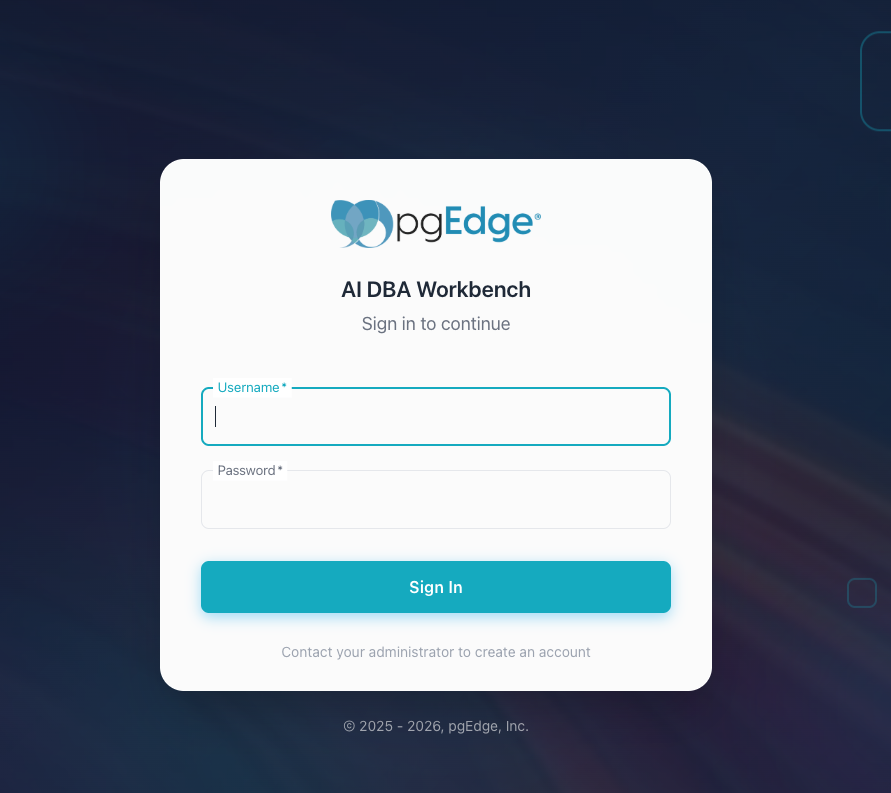
Open a browser and navigate to http://<server-ip>; log in with the
username and password you created when you ran the -add-user command.
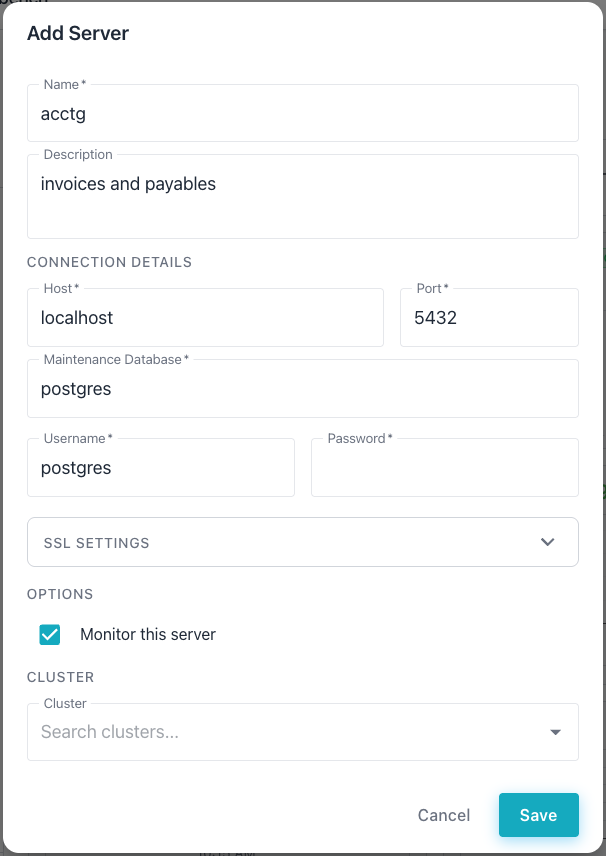
After logging in, select the + next to the DATABASE SERVERS heading
in the left navigation panel. The Workbench adds a new server definition
entry.
For detailed information about using the Workbench, see the User Guide.
Customizing your Configuration
Consult the following guides for additional configuration information:
-
The systemd configuration guide provides details about setting up systemd service management for users who did not use pgEdge packages when installing.
-
The collector guide covers tuned connection pools and SSL.
-
The server guide covers TLS, authentication, and LLM integration.
-
The alerter guide covers anomaly detection and notification channels.
-
The web client guide covers proxy settings and build options.