Controlling Network Access
A pgEdge Starfleet Managed database accepts a connection only from an
address on its allowlist. An allowlist is a list of IP ranges
permitted to reach its endpoint; a range is a single IPv4 address or
a CIDR block, such as 198.51.100.0/24. There are three such
allowlists, one for each endpoint:
- the database.
- the MCP server.
- the RAG server.
Each range can have a label (such as Office VPN), up to 64
characters in length, which is displayed only on the console. An
allowlist can contain up to 50 unique ranges.
Understanding Allowlist States
An allowlist is in one of three states:
| State | Who can connect | What the console displays |
|---|---|---|
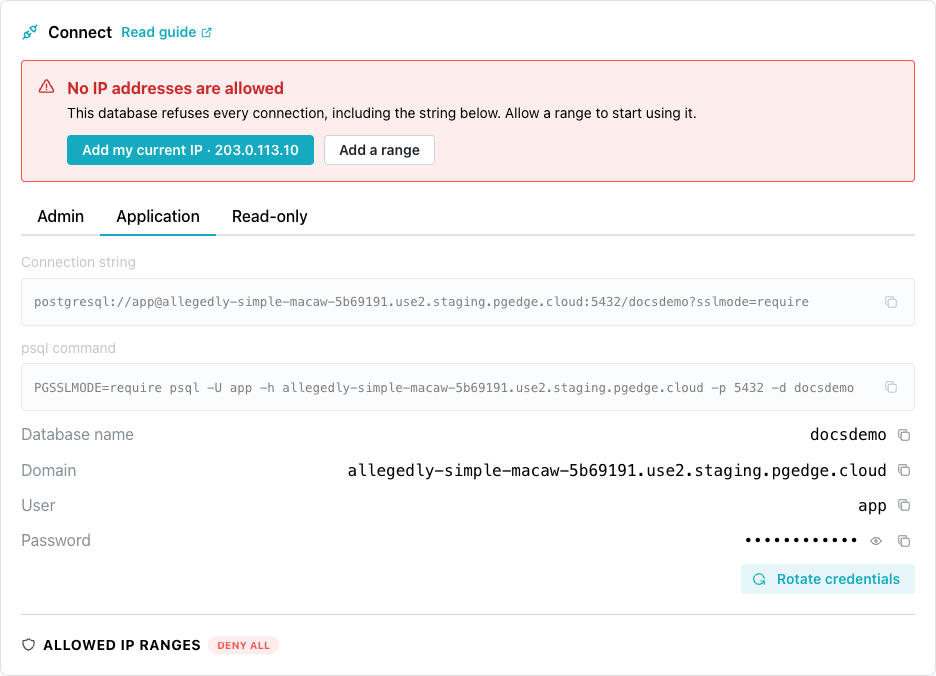
| Closed | Nobody | DENY ALL, or No IP addresses are allowed on the Connect pane |
| Limited | Only addresses inside the listed ranges | The number of ranges, such as 2 ranges allowed |
| Open | Every address on the internet | An Entire internet badge on the range |
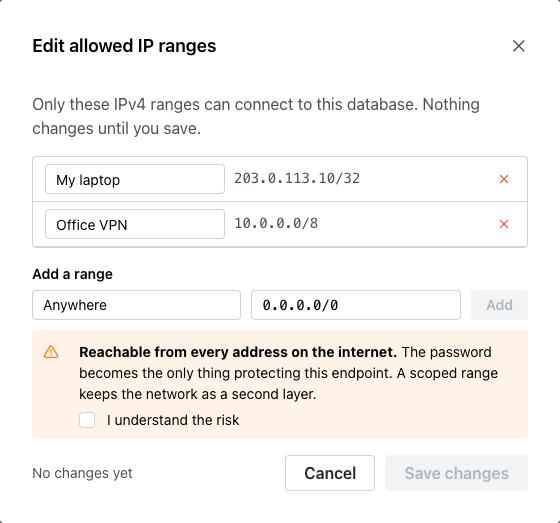
A range ending in /0, such as 0.0.0.0/0, is open, admitting every
address on the internet. When you enter such a range, the form
displays a warning, and Add stays disabled until you select
I understand the risk.
A new database starts in a closed state, unless you allow a range in the
Network access step of the create wizard. A new MCP server or RAG
server also starts in a closed state, even when the database allows ranges.
A database can also be open, with the range 0.0.0.0/0.
An open allowlist leaves the password as the only protection for the
endpoint. Add the ranges you connect from, and then remove the
0.0.0.0/0 range.
Understanding What Each Allowlist Does
Each allowlist corresponds to one endpoint:
- the database allowlist, limiting connections to Postgres from psql, pgAdmin, an application, or any other client.
- the MCP server allowlist, limiting connections to the MCP server.
- the RAG server allowlist, limiting connections to the RAG server.
Creating a branch sets its database allowlist, which cannot change afterward.
Adding a Range to an Allowlist
The database allowlist is managed with the ALLOWED IP RANGES fields
on the database's console page. To add a network address range:
-
Select the database name in the navigation pane, on the left of the console.
-
In the
ALLOWED IP RANGESlist on theConnectpane, selectEdit.If the list has no defined range, select
Add a rangeinstead. TheEdit allowed IP rangesdialog opens.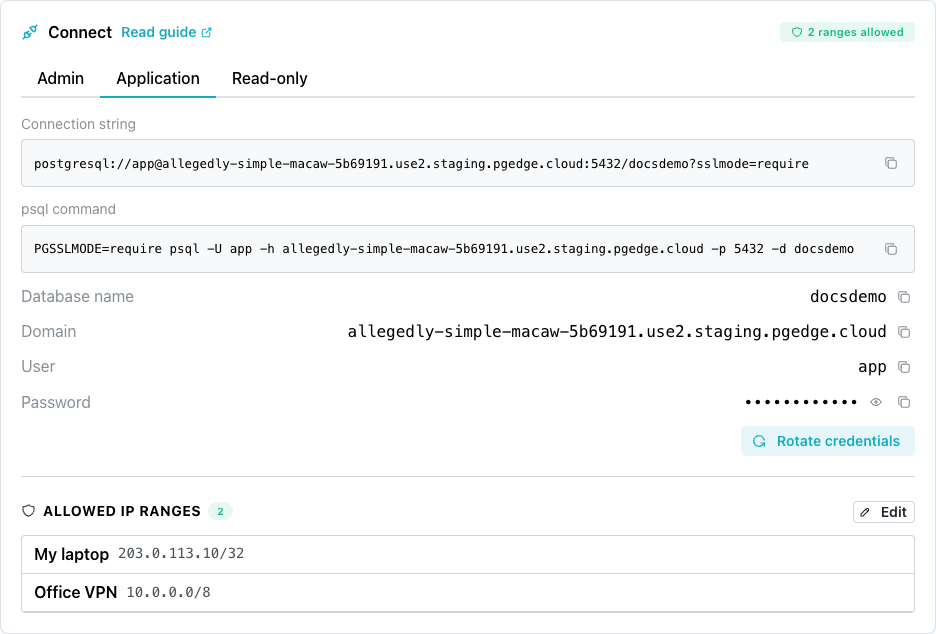
-
Under
Add a range, enter a name that describes the range in the first field.The label is optional, and is up to 64 characters.
-
In the second field, enter the address or range.
The console saves a single address, such as
203.0.113.10, in CIDR format as203.0.113.10/32. -
Select
Add.The range appears in the list, marked
New. Nothing changes until you save. -
Select
Save changes.
While the console applies the change, the database status reads
modifying and you cannot change the list. The banner at the top of
the page reads Network access update finished when the change is
complete. The change affects new connections only, and connections
that are already open stay open until the connected session ends.
When the allowlist is closed, the Connect pane displays Add my current
IP with your current IP address. Select Add my current IP to add
your current address as a range labeled My laptop.
The Edit allowed IP ranges dialog also offers Add my current IP when
no range in the list admits your address. In the dialog, the range is
added when you select Save changes.
Your current IP address may differ from the address a server or CI runner connects from. Add a separate range for every address that needs to connect.
Adding a Range for the MCP Server or RAG Server
The MCP server and RAG server allowlists are on the Services page,
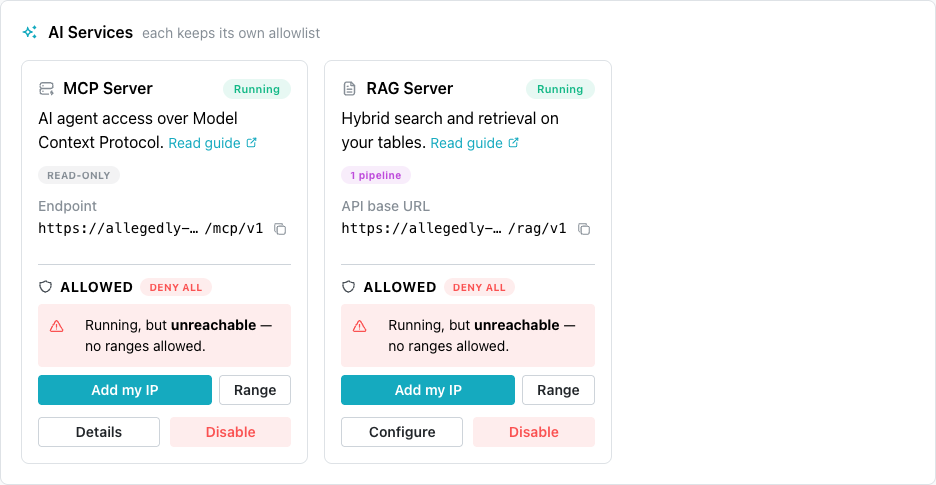
and a summary is on each server's card in the AI Services pane. When
a server allowlist has no range, the card displays two controls:
Add my IP, which adds your current IP address as a range labeledMy laptop.Range, which opens the server's section of theServicespage so you can selectAdd a range.
When the server allowlist has a range, select Manage access on the
card to open the Services page. There, Edit opens the same
Edit allowed IP ranges dialog as for the database.
A change to a server allowlist is complete when the banner at the top of
the page reads Service update finished.
Understanding Allowlist Limits
An allowlist accepts ranges within these limits:
- IPv4 only.
- A prefix length from
/0to/32. - 50 ranges per allowlist.
- No duplicate ranges.
The console refuses an IPv6 address and compares ranges in their
saved form, so 10.0.0.1 and 10.0.0.1/32 count as the same range.
The console also saves a CIDR block at the start of its range:
10.1.2.3/8 becomes 10.0.0.0/8, which admits the same addresses.
Editing or Removing a Range
Rows in the ALLOWED IP RANGES list are read-only. Select Edit to
open the Edit allowed IP ranges dialog, where you can:
- change a range's label in the field beside the range.
- select the X beside a range to mark it
Removing. Select the undo arrow in its place to keep the range.
The dialog cannot change a range itself. To change a range, remove it
and add the new range. Select Save changes to apply every change at
once, or Cancel to discard them.
When you remove the last range, the dialog warns Saving an empty list
blocks every new connection to this database. After you save, the
allowlist is closed and nothing can connect to that endpoint.
Troubleshooting
The platform refuses a connection from an address outside every range, before it reaches Postgres or the service.
-
SSL error: unexpected eof while readingfrom psql means the database allowlist has no range for the address you connect from. Postgres never receives the connection, so it never checks a password. Add a range for the address, and connect again after the banner readsNetwork access update finished.A message such as
password authentication failedmeans the connection reached Postgres. The allowlist is not the cause. -
An MCP client or RAG client is refused when the database accepts connections but the MCP server or RAG server refuses a client. The server allowlist has no range for the address the client connects from; the database allowlist does not apply to the server. Add a range for the address in the server's section of the
Servicespage. -
Running, but unreachable — no ranges allowed.on a server card means the server is running, and its allowlist is closed. SelectAdd my IP, or selectRangeto add a range for another address. -
IPv6 is not supported — this endpoint is reachable over IPv4
  only
means the endpoint accepts IPv4 connections only. Enter the IPv4 address or range you connect from. When your network uses IPv6 only, connect through a network or VPN that has an IPv4 address. -
Already allowed as <label>means the range is already in the allowlist, under the label shown. The console compares saved ranges, so a range written differently can still match. Use the existing range, or edit it. -
This list already holds the maximum of 50 ranges. Remove one to
  add another.
means the allowlist has 50 ranges. Remove a range, or replace several single addresses with one CIDR block that covers them. -
Ranges can only be changed while the database is available or
  degraded
means the database is busy with another change, and the message names its status at the end. Wait until the status readsavailableordegraded, then make the change. -
This list changed while you were editingmeans someone else saved a change to the allowlist while your dialog was open. The console applies your changes to the new list, and saves nothing when the result would exceed 50 ranges or change whether the list is empty. Follow the instruction at the end of the message.