Connecting with psql
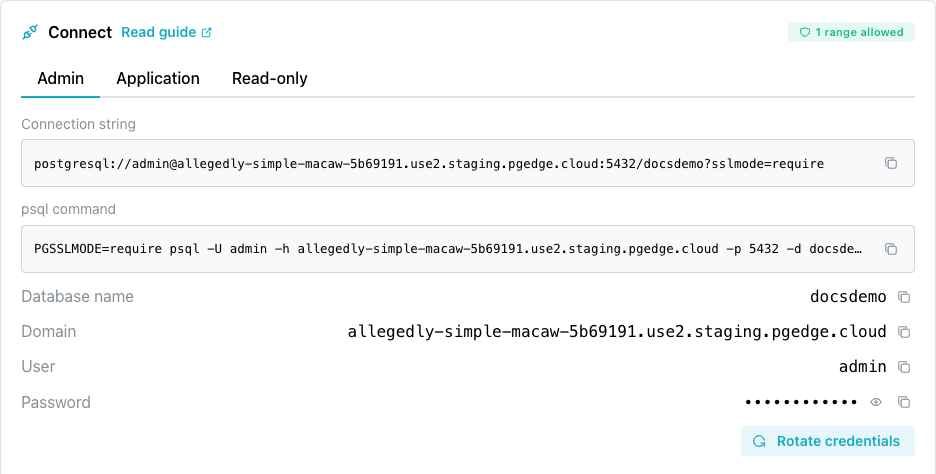
To locate database-specific psql connection properties for your pgEdge
Starfleet PostgreSQL database, double-click a database name in the console
navigation panel or navigate to the database's main page in the console. Below
the header of the database page, the console displays the Connect pane. The
pane displays one tab per built-in role:
- an
Admintab with credentials for theadminuser. - an
Applicationtab with credentials for theappuser. - a
Read-onlytab with credentials for theapp_read_onlyuser.
Each tab displays a Connection string, a ready-to-use psql command, and
a Rotate credentials button, built from that tab's Database name,
Domain, User, and Password values. The console masks the Password
until you select the reveal control beside it.
The Connect pane displays the Connection string and psql command blocks
on screen without the password. The copy button beside each block copies
the same value with the password included, so the clipboard contains a
live credential even though the screen does not display it.
For details about each role's capabilities and which role to use, see Managing Database Roles.
psql can connect only from an address on the database allowlist. Check that
the ALLOWED IP RANGES list on the Connect pane has a range for the address
you connect from. For more information, see
Controlling Network Access.
Hint
Connect as app to create tables and load data. Connect as admin to
install a supported extension app cannot install, such as vector,
or perform server-wide administration,
such as monitoring sessions or creating roles.
Using the psql Client
The psql client is distributed with PostgreSQL, and is available for download at the Postgres website. For more information about psql, see the Postgres documentation.
If you have already installed a copy of psql, connection is simple. Each tab
of the Connect pane (Admin, Application, or Read-only) displays a
ready-to-use psql connection string. For example:
PGSSLMODE=require PGPASSWORD=<your-password> psql -U admin -h <your-domain> -p <your-port> -d <your-database>
Select the copy icon next to the psql connection string to copy it, paste
it directly into a terminal window, and press Return to connect.
Hint
The PGSSLMODE=require environment variable is the shell-variable
spelling of the sslmode=require setting the Connection string block
includes in its URI. Both enforce the required TLS connection.
If you start psql with a graphical prompt or icon (rather than the command
line), respond to each prompt with the matching connection-string value,
then press Return:
Server [localhost]takes the host name from the connection string, the value displayed in theDomainfield.Database [postgres]takes the database name from the connection string, the value displayed in theDatabase namefield.Port [5432]takes the port from the connection string, not the Postgres default.Username [postgres]takes theUservalue from theConnectpane; in this example, the user isadmin.Passwordtakes thePasswordvalue from theConnectpane.
Installing psql and Connecting
To install psql on your local system, follow the platform-specific instructions below.
On a Mac
On a Mac, you can use brew to install psql at the command line. Open a
Terminal window and enter:
brew install libpq
When brew completes, use the following command to ensure the newly
installed version of psql is first in your PATH:
echo 'export PATH="/usr/local/opt/libpq/bin:$PATH"' >> ~/.zshrc
Then, to connect to a pgEdge Starfleet database, use the copy button to
the right of the connection string in the Connect pane to copy the
psql connection string of your database, and paste it into the
Terminal.

Press Return to connect to the server with the psql client.
On Linux
On a Linux system, install the postgresql package with your platform-specific
package manager; for example, on a Rocky Linux host, use yum:
yum install postgresql
This command installs psql in /usr/bin/psql. After installing, you can
connect to the database with the connection string provided by the pgEdge
console.
For detailed information about installing PostgreSQL packages on Linux, visit the PostgreSQL Downloads page.
On Windows
For detailed information about installing PostgreSQL on Windows, visit the PostgreSQL downloads page. After installing PostgreSQL, you can navigate through the Windows menu to open the psql client.