Using the Settings Dialog
In the lower-left corner of the pgEdge Starfleet BYOC console you'll find a
link to the Settings dialog; you can use the Settings dialog to
modify your profile, create an
API client,
obtain or set account information, or review your cluster
nodes on a map.
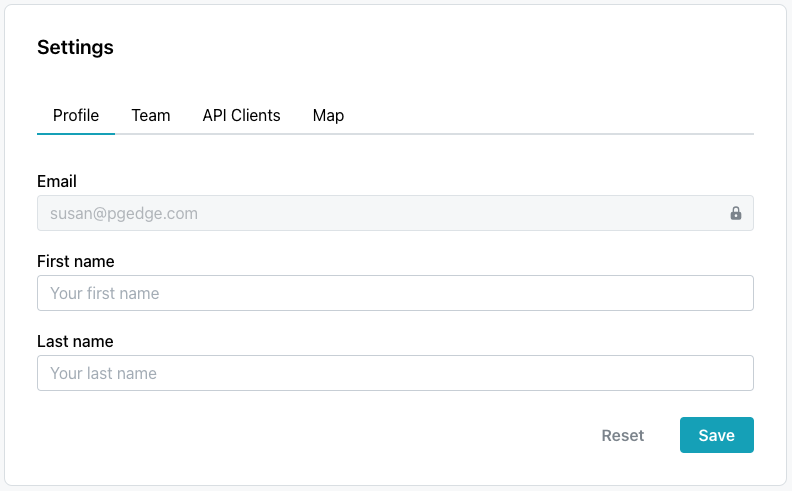
The Profile Tab
Use fields on the Profile tab to modify the names associated with your
account; you can also find a link to the Profile tab in the user information
drop-down menu (located in the upper-right corner of the screen):
- Provide your first name in the
First namefield. - Provide your last name in the
Last namefield.
Note
The email associated with the account cannot be modified.
When you've finished, select Save to update your account with the name
changes; use the Reset icon to return the fields to their previous values.
The API Clients Tab
Select the API Clients tab to view, manage, or create an API client.
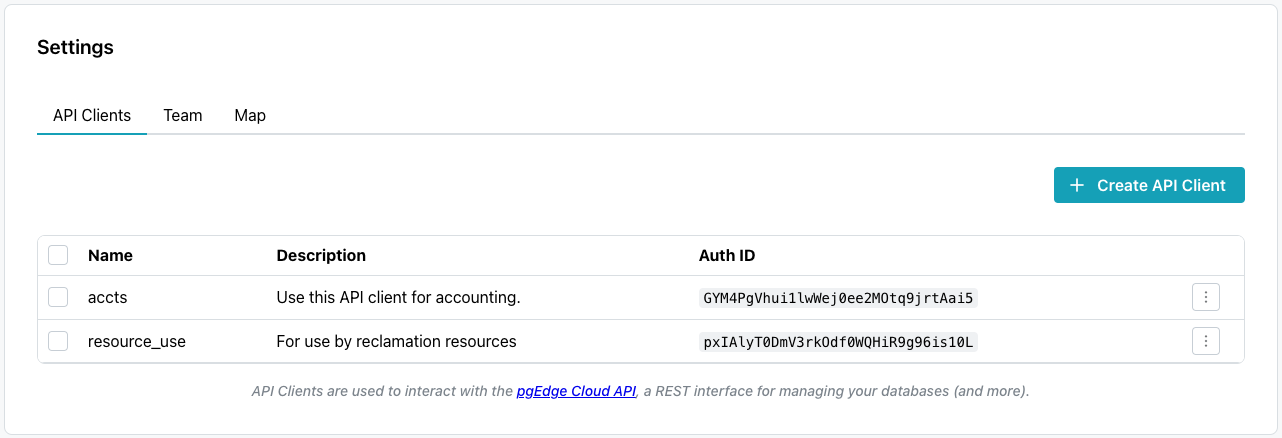
You can use options accessed on the API Clients tab, to define and delete API
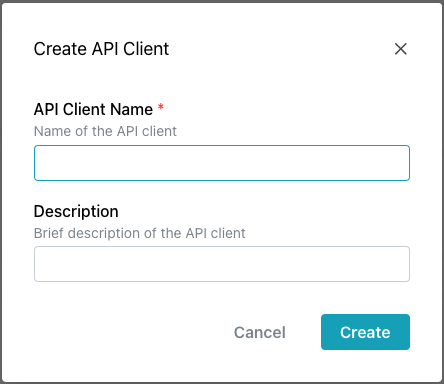
clients. To create an client, select the Create API Client icon. When the
Create API Client popup opens:
- Provide a user-friendly name for the API client in the
API Client Namefield. - Provide a brief description of the API client in the
Descriptionfield.
Then, to create the API client, click the Create button.
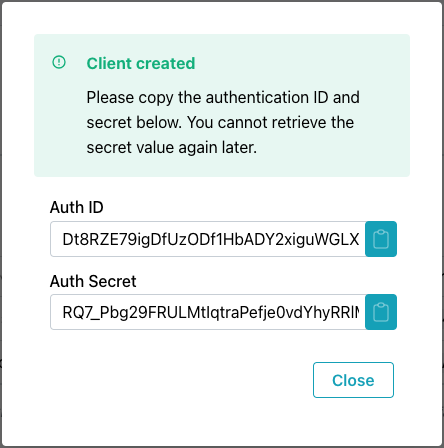
When you create an API client, you will be provided an Auth ID and
Auth Secret that you can use when connecting to BYOC with the API, and the
new client will be added to the API Clients list.
Warning
Be sure to copy your Auth Secret when it is displayed on the
Client created popup and store it in a safe place; the Auth Secret
cannot be retrieved once the popup is closed.
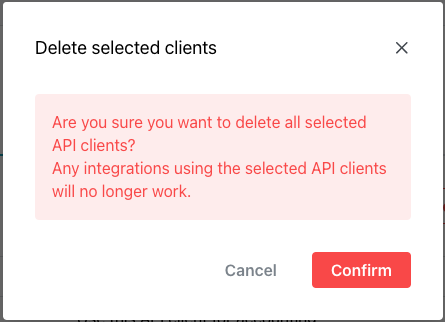
To delete one or more API client(s), check the box to the left of the client
name and select the Delete selected client button, or choose the Delete
option from the context menu located to the right of the API client identifiers
in the API Clients table. When prompted, click the Confirm button to delete
the selected client(s).
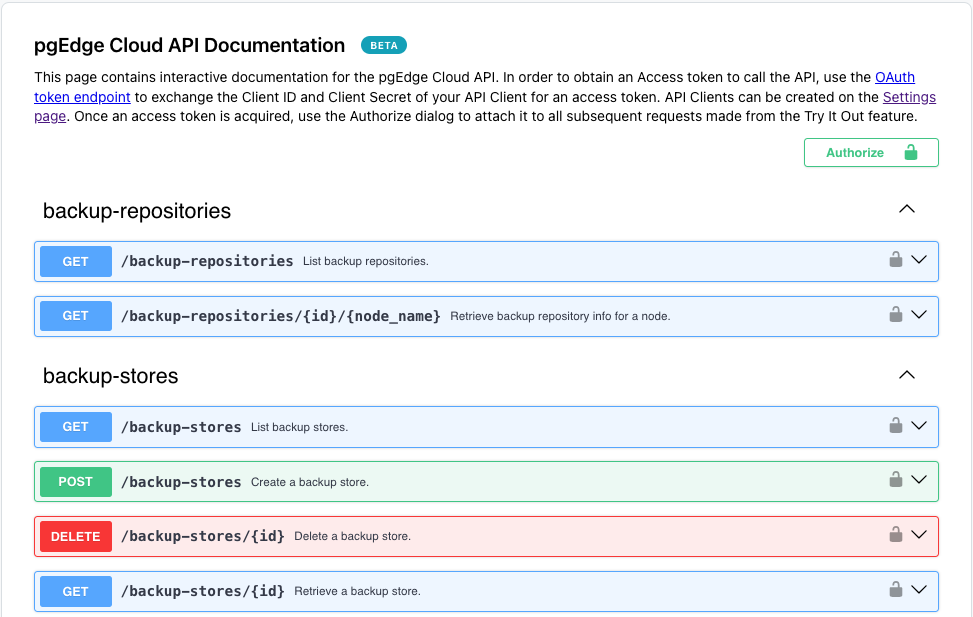
API Documentation
Use the pgEdge Starfleet BYOC API link below the table to access the API
documentation.
The Team Tab
The Team tab displays information about your account:
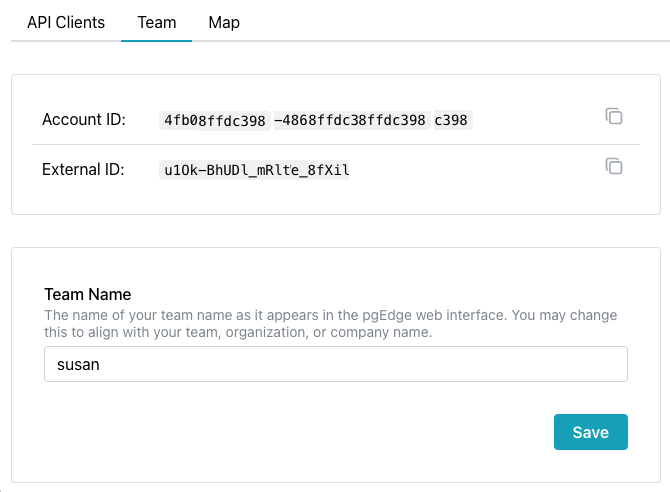
- Provide the
Account IDwhen contacting pgEdge support (if needed for troubleshooting). - The
External IDis used in the AWS IAM trust policy, when granting access to an AWS account for cluster provisioning. - Update the
Team Nameto match your team, division, or company name. This name appears in invitation emails when you invite other people to join your account.