Managing Cloud Provider Accounts
Before creating a cluster on pgEdge Starfleet BYOC, you must create an account
with a cloud provider and link that account with your BYOC account. Select the
Cloud Accounts node in the navigation pane to open the Cloud Accounts page.
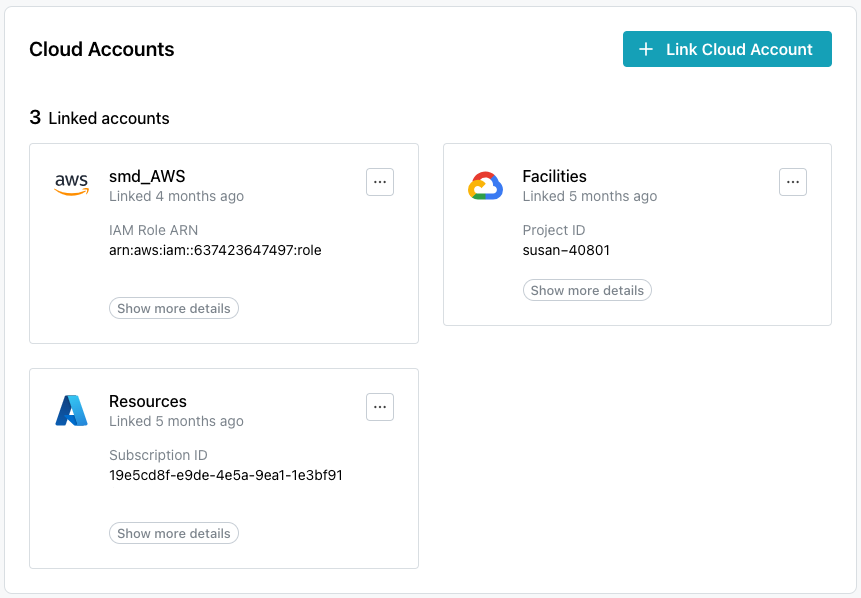
Use options accessed from the Cloud Accounts page to manage the accounts used
to provision databases with pgEdge Starfleet BYOC; to get started, select the
+ Link Cloud Account button to link an account with pgEdge Starfleet BYOC.
Then, visit the vendor-specific page for information about linking an account with:
* [AWS](byoc_link_to_AWS.md)
* [Azure](byoc_link_to_Azure.md)
* [Google](byoc_link_to_Google.md)
After linking a provider account, that account is displayed on the
Linked accounts pane. Use the Show more details button to display details
about the provider account.
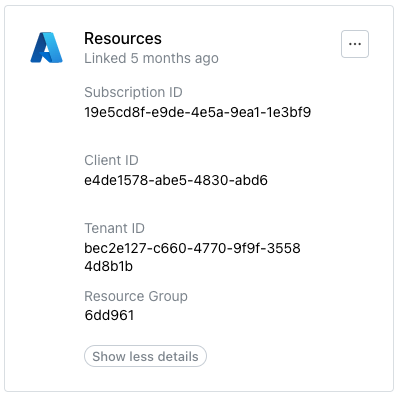
Use the menu icon (...) in the upper-right corner of an account pane to access the account management options and edit account details or unlink an account.
Deleting an Account Link
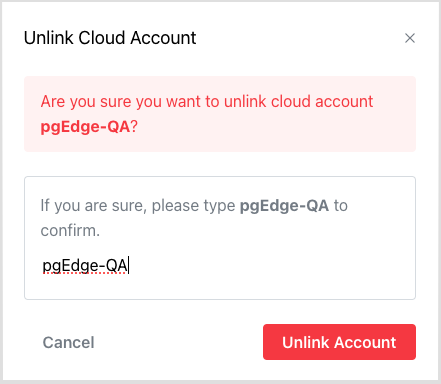
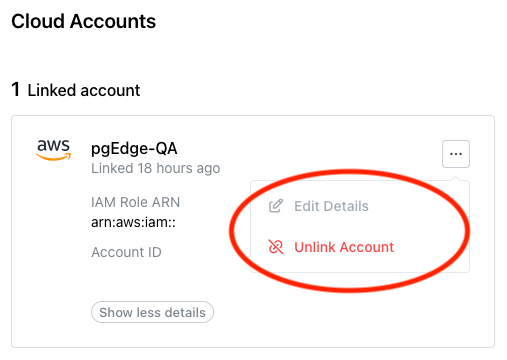
Before deleting an account link, ensure that any resources deployed with BYOC have been backed up to your satisfaction and destroyed. Then, to delete the link to a cloud vendor account, select the menu icon (...) in the top-right corner of the pane of a linked account.
When the menu opens, select Unlink Account.
To confirm that you wish to unlink the account, enter the account name in the
Unlink Cloud Account popup, and press the Unlink Account button.