Linking an Azure Account
pgEdge Starfleet BYOC uses an App Registration to provision clusters in a
specific Resource Group within your Azure subscription. You can create an
App Registration and an associated Client Secret in the Azure console under
Microsoft Entra ID --> App Registrations.
You can use a new or existing Resource Group. The following roles must be
assigned to the App Registration on the Resource Group prior to creating a
cluster:
ContributorKey Vault AdministratorKey Vault Data Access Administrator
To assign a role, navigate to: Resource Groups --> <Resource Group Name>
--> IAM --> Add role assignment.
The following resource providers must be registered on the Azure Subscription to enable API access.
Microsoft.ComputeMicrosoft.NetworkMicrosoft.ManagedIdentityMicrosoft.KeyVault
To register a resource provider, navigate to: All services -->
Subscriptions --> <Subscription Name> -> Resource Providers.
Depending on your node locations and Azure Instance Type selection, you may
need to request Quota Increases under All services --> Quotas --> Compute
to ensure that virtual machines can be successfully created in each location.
To link an Azure account with your pgEdge Starfleet BYOC account, select the
Cloud Accounts heading in the left navigation pane and then the
+ Link Cloud Account button.
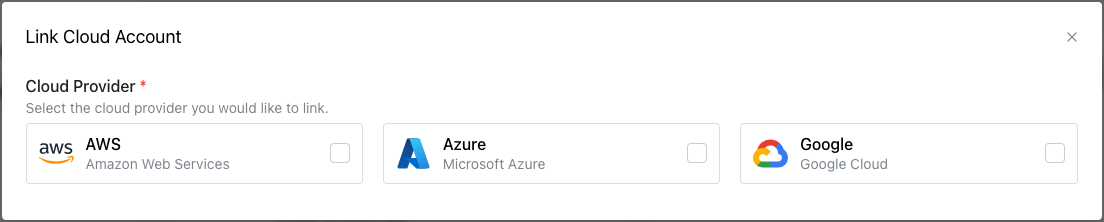
On the Link Cloud Account dialog, select the Azure icon to expand the
dialog.
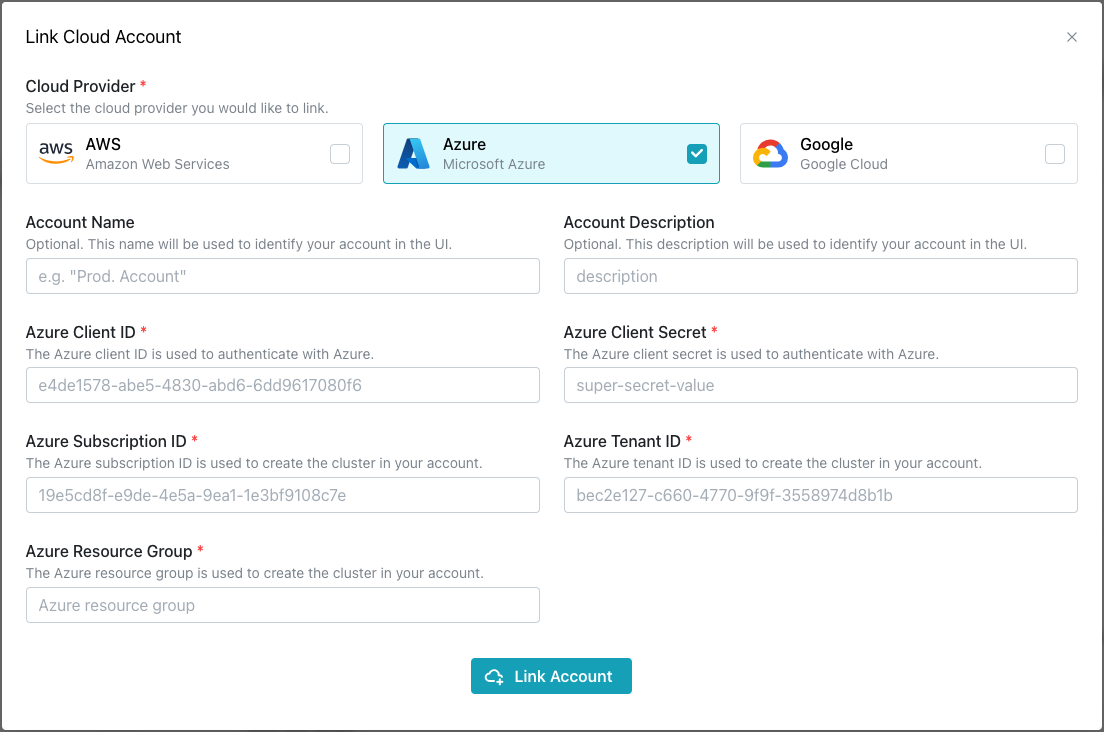
Use the fields in the dialog to create a link to your Azure account:
- Provide a user-friendly name in the
Account Namefield. - Provide an account description in the
Account Descriptionfield. - Provide your Client ID in the
Azure Client IDfield. - Provide your Client Secret in the
Azure Client Secretfield. - Provide your Subscription ID in the
Azure Subscription IDfield. To find your subscription ID in the Azure console, go toAll services-->Subscriptions-->Subscription ID. - Provide your Tenant ID in the
Azure Tenant IDfield. To find your tenant ID in the Azure console, go toMicrosoft Entra ID-->Properties-->Directory ID. - Provide your Resource Group in the
Azure Resource Groupfield.
After providing connection information, select Link Account to create a link
to your Azure account.
Deleting an Account Link
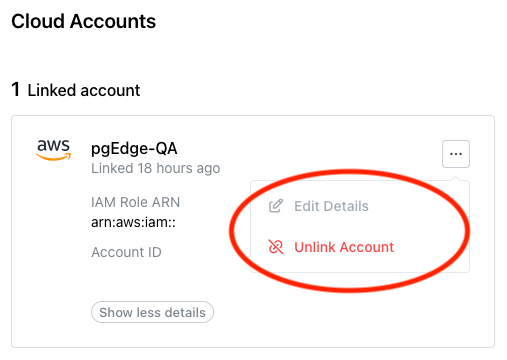
Before deleting an account link, ensure that any resources deployed with pgEdge Starfleet BYOC have been backed up to your satisfaction and destroyed. Then, to delete the link to a cloud vendor account, select the menu icon (...) in the top-right corner of the pane of a linked account.
When the menu opens, select Unlink Account.
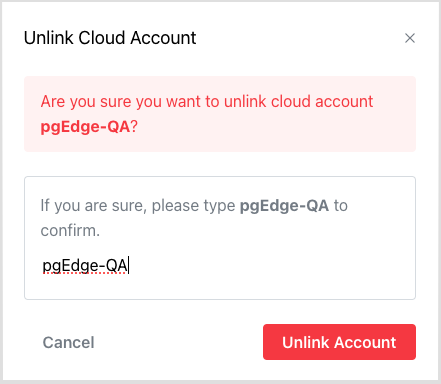
To confirm that you wish to unlink the account, enter the account name in the
Unlink Cloud Account popup, and press the Unlink Account button.