Removing a Database, Node, or Cluster
Use the Actions drop-down menu in the upper-right corner of the pgEdge
Starfleet BYOC console to manage databases, nodes, and clusters. The menu
options are context-sensitive; the selected action applies to the object
currently highlighted in the navigation panel. To access the menu options,
highlight the name of the cluster object in the navigation panel, and then open
the Actions menu.
Dropping a Node from a Cluster
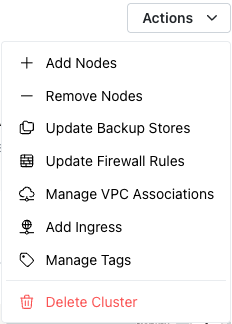
To access the Remove Nodes dialog, highlight the name of a cluster in the
navigation panel and select Remove Nodes from the Actions menu.
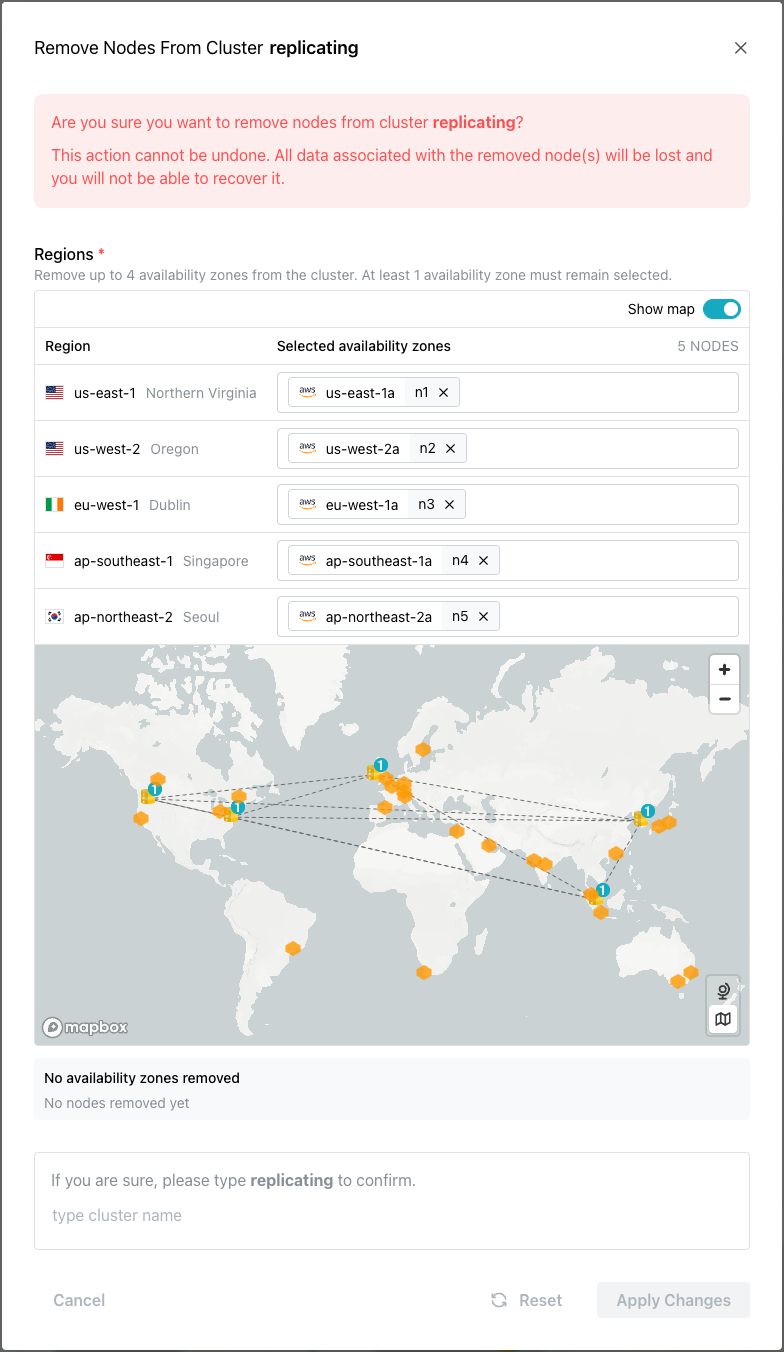
When the Remove Nodes dialog opens, click a node on the map or click the X
in an availability zone name in the Regions section to remove a node from the
specified region. To remove the node and reconfigure the cluster, enter the
cluster name in the confirmation field and click Apply Changes.
Hint
You may only remove a single node at a time. When working with a multi-node cluster with replication enabled, the cluster cannot drop below two nodes.
Removing a Database from a Node
To drop a database from a cluster node, select the name of the database in the
navigation panel and open the Actions menu.
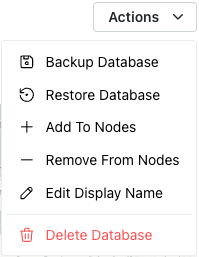
Select Remove From Nodes from the Actions menu to open the
Remove Database dialog. When the dialog opens, deselect the nodes on the map
or from the list of availability zones to indicate which nodes to remove the
database from.
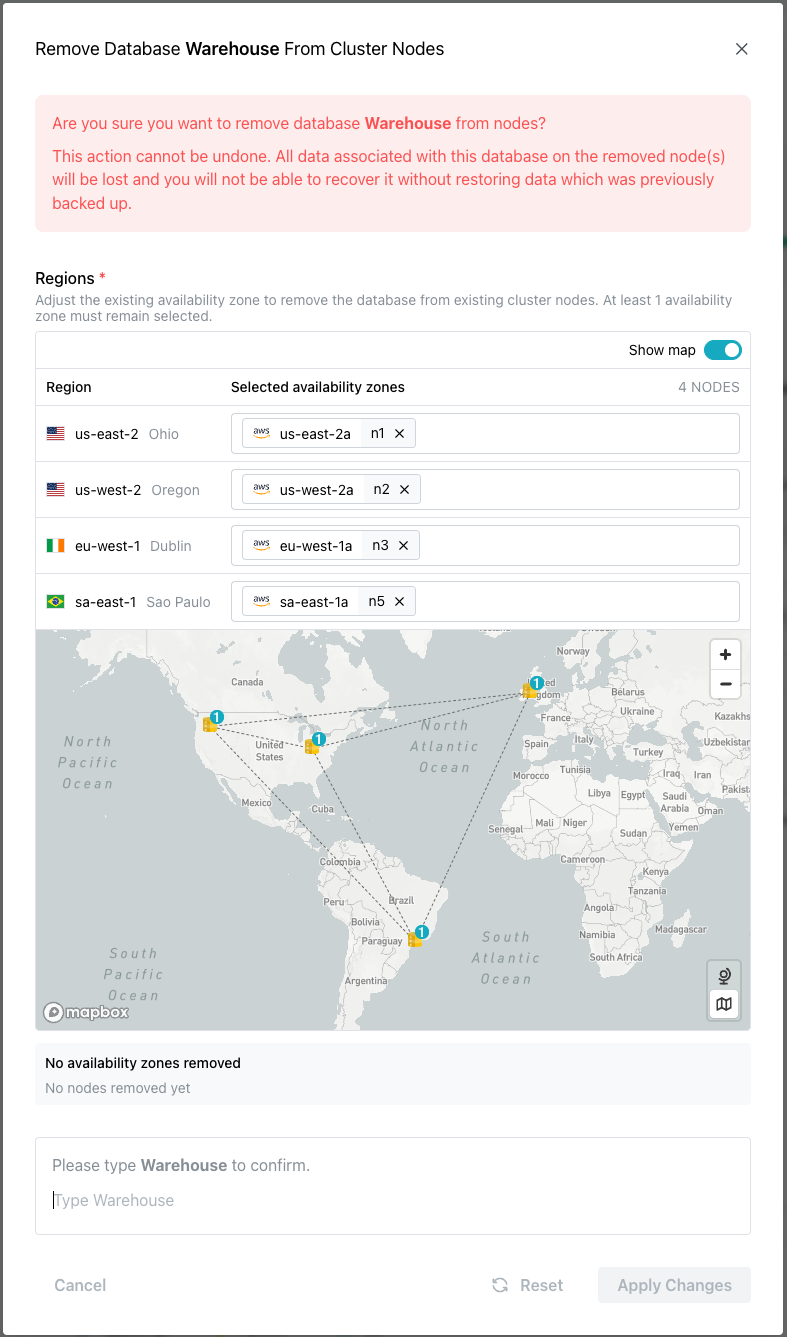
After removing the nodes from the Regions list, type the database name in the
confirmation pane and click Apply Changes. The database is removed from the
node, resulting in the loss of all data on that node; database backups remain
available via the API. The remaining cluster nodes are then reconfigured to
replicate the database between them.
Deleting a Database
To delete a database, highlight the name of the database in the navigation
panel. Open the Actions drop-down in the upper-right corner and select
Delete Database from the context menu.
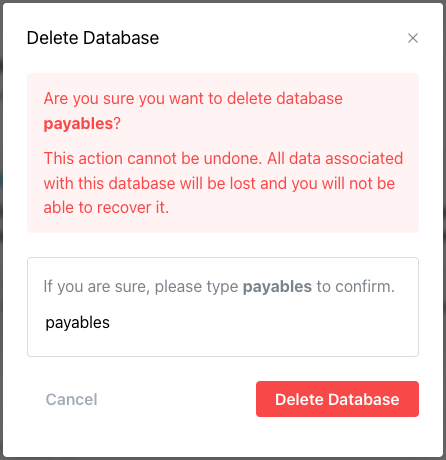
When prompted, enter the database name in the confirmation window and select
Delete Database.
Deleting a Cluster
To delete a cluster, select the cluster name in the navigation panel to open
the cluster information page. Select the Actions drop-down in the upper-right
corner and choose Delete Cluster.
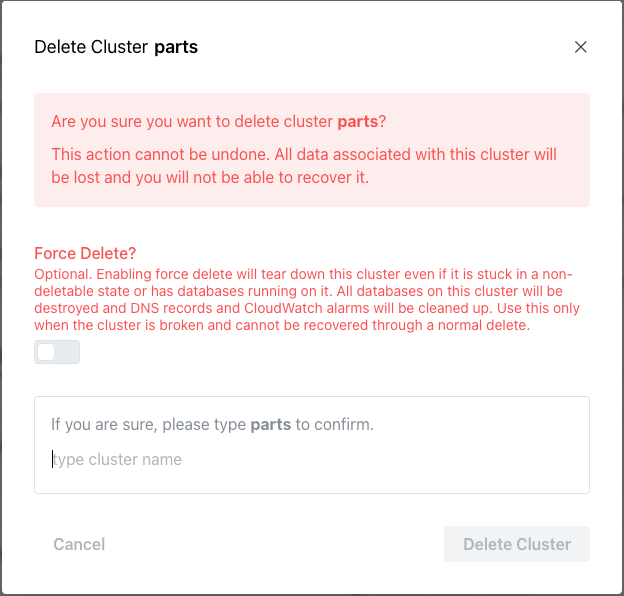
If the cluster contains databases, use the Force Delete slider to confirm
that you wish to delete the cluster, and all cluster resources currently
deployed; this will remove all databases, DNS records, and CloudWatch alarms.
To delete the cluster, enter the cluster name to confirm and press
Delete Cluster (or Force Delete Cluster) to confirm.
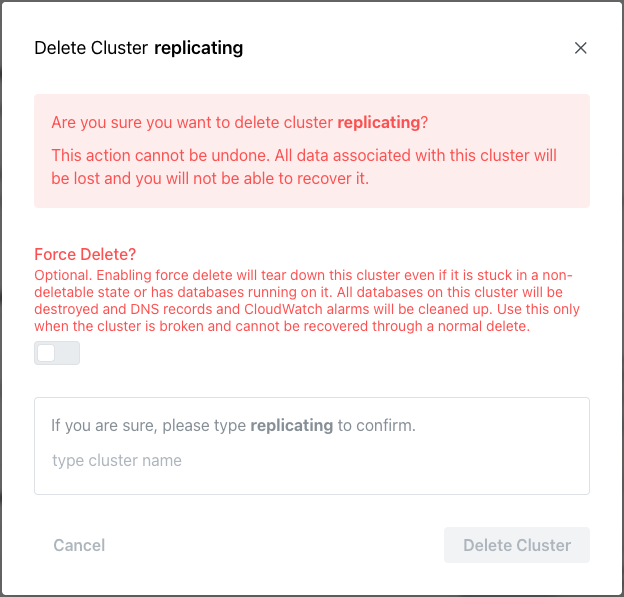
BYOC will alert you if you attempt to delete a cluster that still hosts
databases without selecting the Force Delete option.
