Connecting with pgAdmin
To use the pgAdmin client to manage your pgEdge Starfleet BYOC database and the
objects that reside on it, right-click on the Servers node in the pgAdmin
client, and select Register, then Server from the context menu.
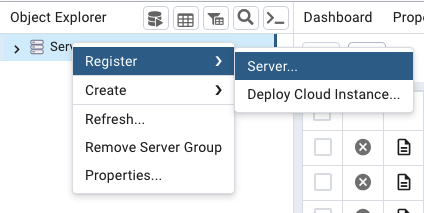
The Register - Server dialog opens:
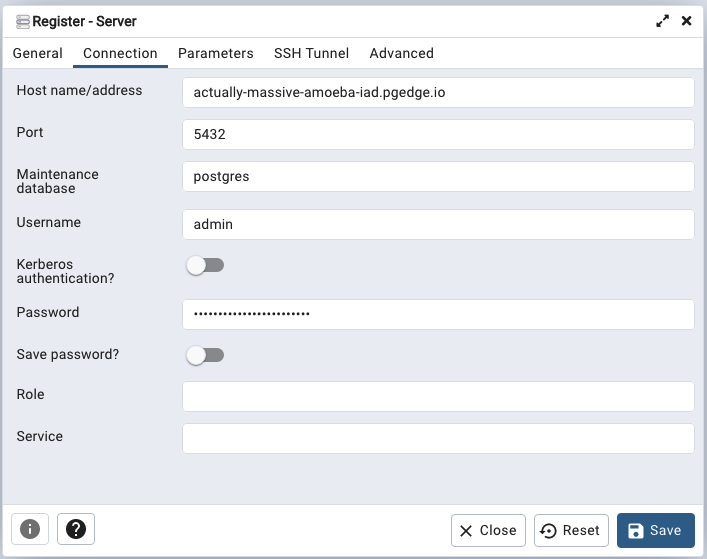
When prompted, provide authentication details on the pgAdmin Connection tab.
To find connection information for your database, highlight the database name
in the navigation panel, and review the Connect to your database pane shown
on the Database dialog:
-
Provide the name shown in the
Domainfield that ends with.pgedge.ioin theHost name/addressfield. -
Provide the name of your database in the
Maintenance databasefield. -
Replace the default
Usernamewithadminwhen connecting for the first time. -
Enter the password associated with the user in the
Passwordfield.
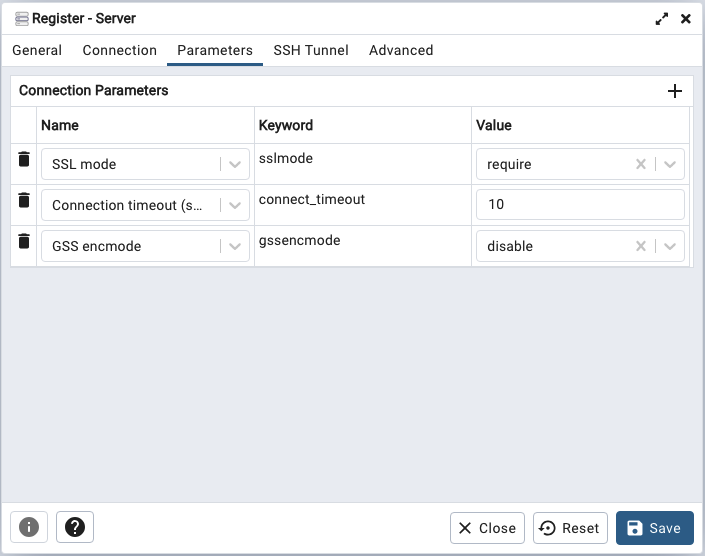
Provide the following information on the Parameters tab:
-
Use the drop-down to the right of
SSL modeto selectrequire. -
Use the
+at the top of the parameter table to open a new row, and use the drop-down list in theNamefield to selectGSS encmode. Set theValuetodisable.
Complete the other tabs in the Register - Server dialog specifying your
connection preferences, and select Save. The connection to your database is
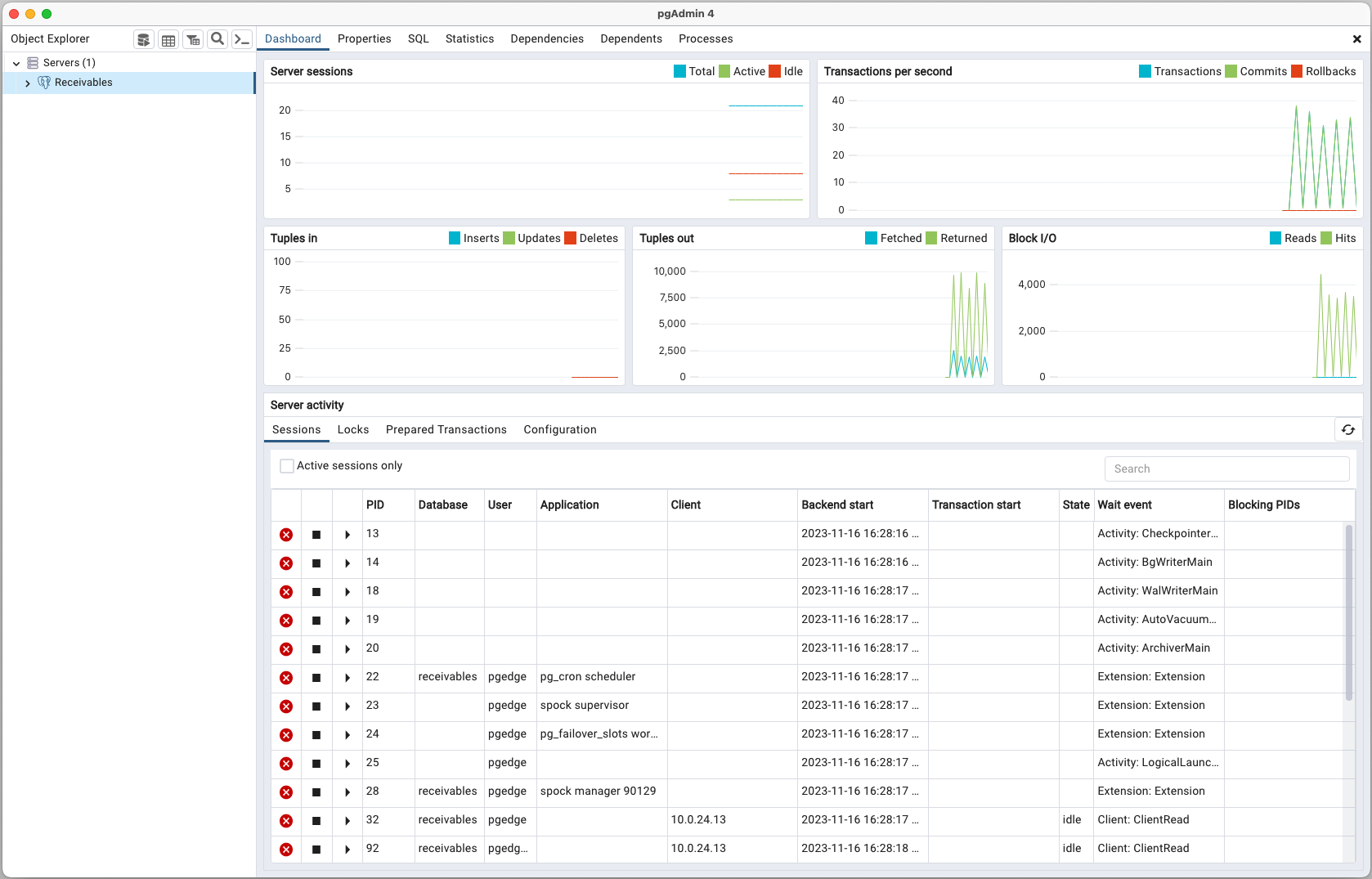
added to the Servers node in the Object Explorer pane, and the pgAdmin
Dashboard displays current database activities.
For detailed information about using pgAdmin, you can review the pgAdmin documentation at: https://www.pgadmin.org/docs/.