Defining a Backup Store
Use options accessed via the Backup Stores link in the navigation pane to
define storage on your cloud provider. Then, when you deploy a cluster, you can
select a backup store to attach to the pgEdge Starfleet BYOC cluster for use
when backing up cluster nodes or log files.
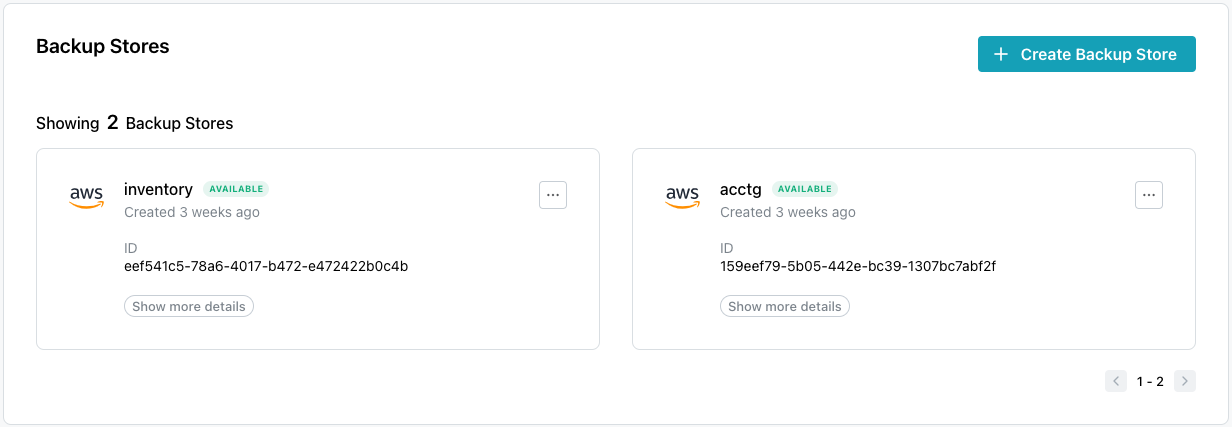
A cloud provider backup store acts as a connection between your BYOC cluster and your provider's object store. The provider account that is used for your backup store must be the same account used when deploying the cluster. You can attach more than one backup store to a single cluster, and each backup store can be used for multiple BYOC nodes and/or databases.
When you create the backup store, two storage buckets are deployed in the store; one bucket is used for backups, and one is used to store provider access logs for the primary bucket.
To reduce network latency, you should backup each node to a backup store located geographically close to the node's region (ideally within the same region). You can optionally create a backup store in another region, but archiving will take longer if the store is geographically distanced.
Creating a Backup Store
The Backup Stores dialog displays the backup storage defined on your cloud
provider; select the Create Backup Store icon (located in the upper-right
corner of the dialog) to provide details and define a backup store.
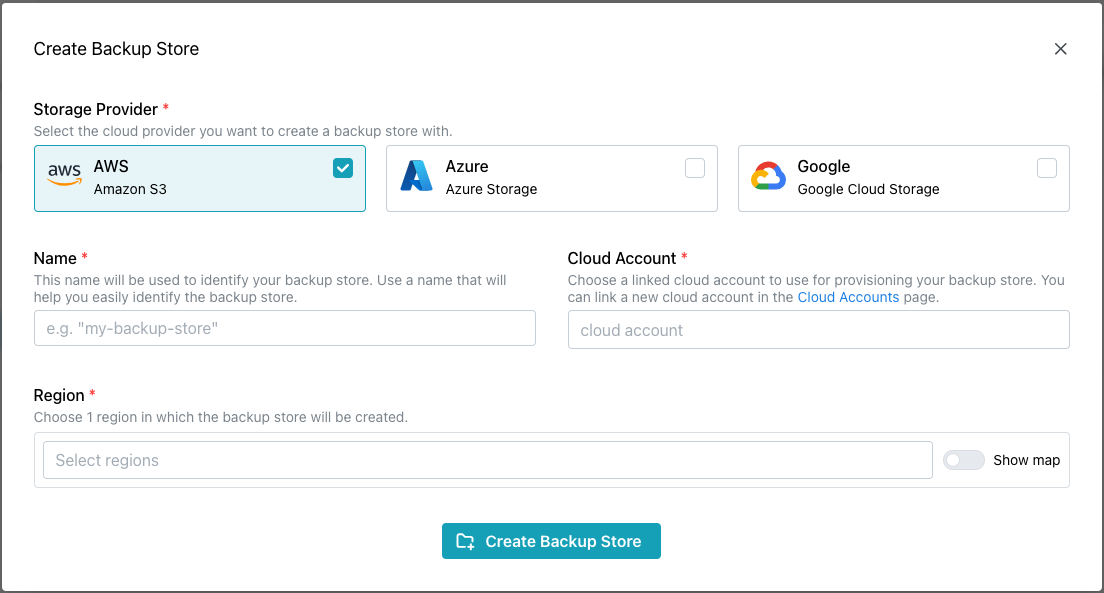
To define a backup store, start by selecting the Storage Provider on which
you wish to create a backup store. Then, when the dialog expands:
- Provide a user-friendly
Nameto identify the backup store. - Select the
Cloud Accountthat will be used to provision the store. - Select a
Regionin which the backup store will be created.
When you've specified your preferences, click the Create Backup Store icon to
create the store.
Attaching a Backup Store to a Cluster
You can attach multiple backup stores to each cluster
during cluster creation;
before creating a cluster, define any available
backup stores you wish to use. Once defined, a
store will be included in the list of available stores on the Backup Stores
drop-down.
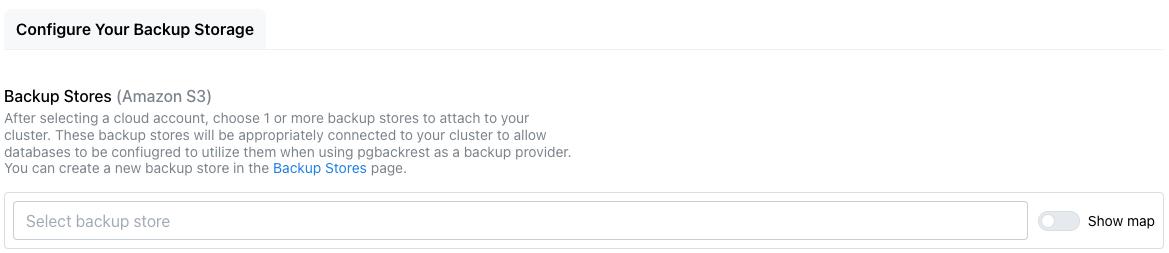
Then, to attach the store during cluster creation, select the backup store from
the Backup Stores field or toggle the Show map option to enabled to
select from stores on the map image.
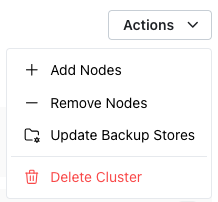
To attach a store to a cluster, highlight the cluster name in the navigation
panel and select Update Backup Stores from the Actions menu.
The Update Cluster Backup Stores dialog opens as shown below:
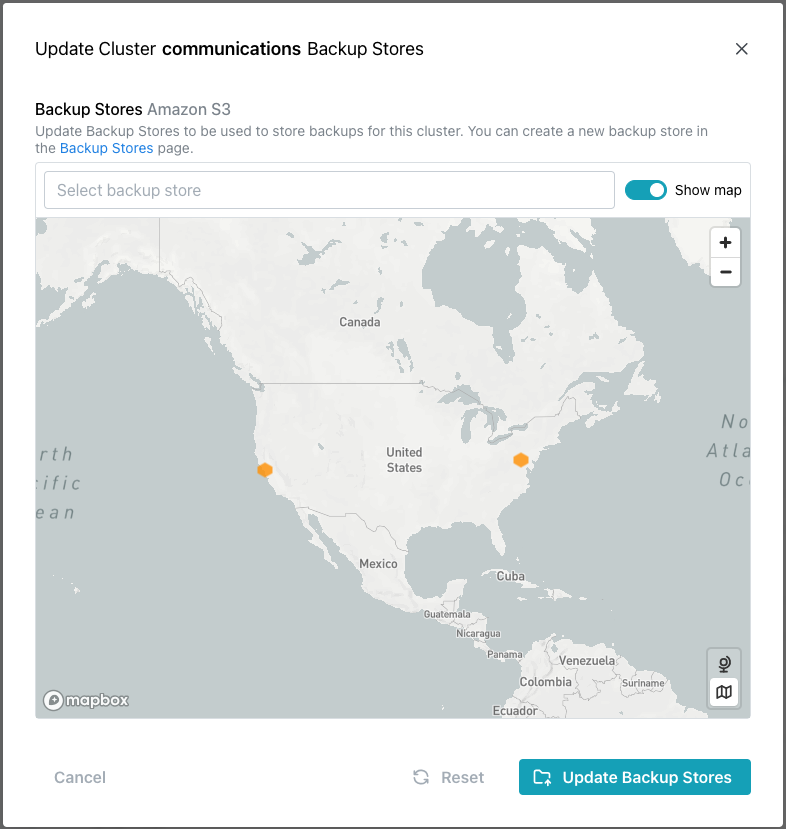
When the dialog opens, click in the Backup Stores field or select from the
icons on the map to choose the backup stores you wish to make available to your
cluster. When you've identified the clusters backup stores, select the
Update Backup Stores button to update the cluster.
Hint
To add a backup store after cluster creation, use the
Update Cluster Backup Stores menu option, selected from the Actions
dialog.
The Backup Stores Dialog
After you define a backup store, the new store will be added to the Backup
Stores dialog; select Show more details to expand the information dialog to
view details about the store:
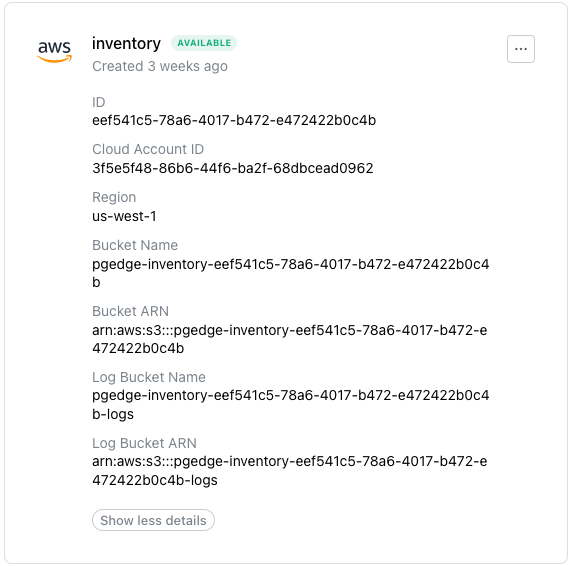
Backup store details include:
- the provider identity, backup store name, and creation date.
- the volume identifier (the
ID). - the
Cloud Account ID. - the
Regionin which the backup store resides. - the
Bucket Name. - the
Bucket ARN. - the
Log Bucket Name; the log bucket stores the access logs to the bucket. - the
Log Bucket ARN.
Note that the security policy associated with the ARN uses the least permissions required to create and use backup stores. You can use your provider's console to modify the security policy if needed.
Deleting a Backup Store
Before you can delete a Backup Store, you must remove all data from the store
in your cloud provider account. Then, to remove a store, highlight the
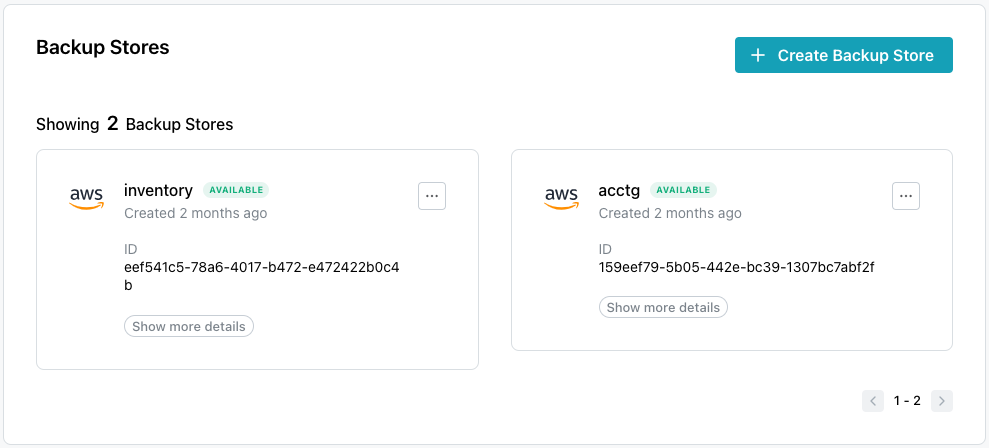
Backup Stores node in the navigation panel. When the Backup Stores dialog
opens, you'll see details about the currently defined backup stores:
To delete a backup store, open the context menu in the upper-right corner of a
backup store information pane and select Delete Store. The
Delete Backup Store popup opens:
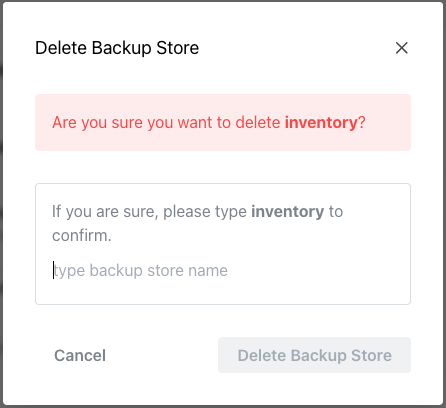
To delete the store, type the name of the store in the confirmation field, and
click the Delete Backup Store button.