Reviewing the Activity Log
When you start a task in the console (for example, deploying a database
or restoring from a backup), the console adds the task to the table on
the Activity Log page. The Activity Log organizes console
activity into a table that you can sort and filter.
Hint
The console also displays a task progress bar on the main console
page for the related database. Select show details on the
progress bar to display additional information about the task in
progress. Each point on the task bar corresponds to an event
detail. To close the task bar, select the X in its upper-right
corner.
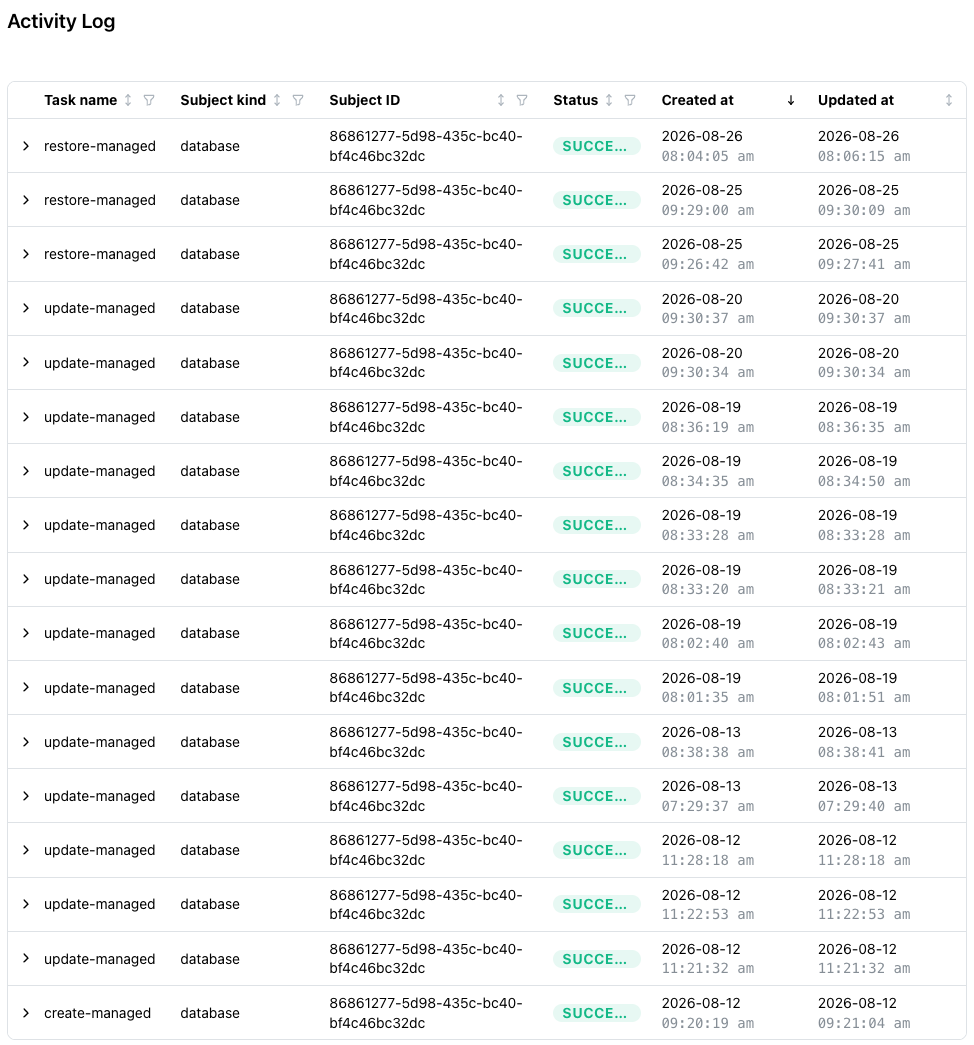
The Activity Log page displays the following columns:
-
Task nameidentifies the type of task for the table entry (for example,create-managed,restore-managed, orupdate-managed-size). The console displays the raw name the API gives the task, with a tooltip that names the task in plain language and explains what it does. -
Subject kindis the kind of resource the task acted on, one ofdatabase,cluster, oringress. Subject IDis the ID of that resource. For a Managed database, this is the database ID displayed in theDetailspane.Statusindicates the state of the task. The values arerunning,succeeded,queued, andfailed.Created atis the timestamp at which the task started.Updated atis the timestamp at which the console last updated the task.
Use the arrow to the left of a Task name to expand the task
information and view the task's own steps and their progress.
Filtering and Sorting the Activity Log
The Activity Log table supports filtering and sorting by column value. A drop-down filter icon located next to each column name lists the available values for that column. Select a value from the filter drop-down to restrict the table to matching rows. Select the arrow between the column name and the filter drop-down to reverse the display order based on that column.
Managed Task Names
Every Managed operation writes a task. The following table describes the task names currently in use:
| Task name | Description |
|---|---|
create-managed |
This task provisions a new database. |
delete-managed |
This task deletes a database. |
suspend-managed |
This task hibernates a database. |
resume-managed |
This task brings a database back from hibernation. |
update-managed-size |
This task performs a resize. |
rotate-password-managed |
This task rotates the password for a role. |
update-managed |
This task represents every services change; an MCP enable, an MCP configure, a RAG enable, and a service removal all write this same name, so the name alone does not identify which service changed. |
restore-managed |
This task restores the database in place from a backup. |
backup-managed |
This task takes a backup; read the caution below before trusting its status. |
Some task names are easy to misread against what actually happened in the console:
update-managedcannot tell you which service changed. Every services write shares this task type. To find out what changed, expand the row and read the steps, or review theAI Servicespane.update-managed-sizerefers to a resize, not a generic update. This is the task associated with theUpgrade sizeaction described in Accessing Management Options with the Actions Menu.
What Succeeded Does Not Tell You
A task that reads succeeded means the operation itself finished, and the
console has already applied the resulting status change; there is no lag
between the two. The task record itself does not say which status resulted, or
whether the database is usable.
Delete is an exception to this behavior: a successful delete removes the database record, so its disappearance from the list confirms success. If a delete leaves the database behind, the task failed.
A services change is the other exception: a succeeded update-managed
means the API has finished its side of the change, but the deployed
server itself takes longer to reflect it. Expect roughly a minute or
two for a configure, and fifteen to twenty seconds for a first MCP
enable.
Warning
backup-managed can read succeeded while the backup is still
pending. The task claims to have taken the backup: its steps show
Configuring System then Taking Backup, both at 100 percent and
marked succeeded. The backup record the task produced is still
pending. Both reach a terminal state, but not at the same time.
Read the backup's own status on the Backups pane rather than the
task's.