Enabling and Using the MCP Server
The AI Services pane on your database's management page displays icons you
can use to deploy available services on your database.

The
pgEdge Postgres MCP Server
acts as a gateway to your Postgres database. The server translates requests
into operations against your database. A read-only server connects to the
database as the app_read_only role, which has read access to every table
app can read. With Allow writes on, the server connects as app.
Select Enable MCP to deploy the server. When the service is deployed, use
the Details button to manage the server.
Warning
The MCP Server provides LLMs with read access to your entire database schema and data. The MCP Server should only be used for internal tools, developer workflows, or environments where all users are trusted.
Enabling the MCP Server
To enable an MCP Server, select Enable MCP on the AI Services pane of
your database's management page. The button is active only while the database
status is Available or Degraded; on a database in any other status,
hovering over the button displays Database not available.
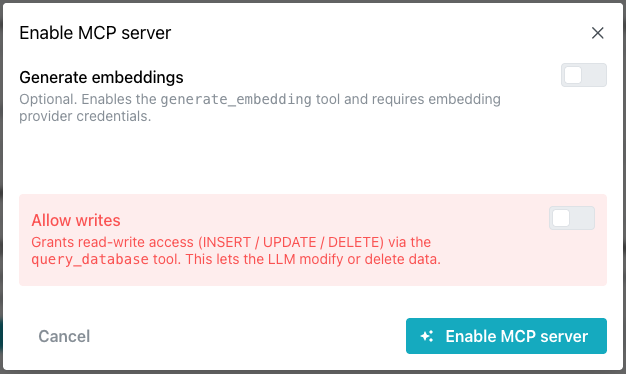
When the Enable MCP Server popup opens, select the features you want to
enable. The popup offers two settings; both options are off by default.
Submitting the form unchanged creates a read-only server with a
platform-generated bearer token.
Select:
-
Enable
Generate embeddingsto expose thegenerate_embeddingtool, allowing the connected LLM to request vector embeddings for text (for example, to support semantic search of your database using pgvector). Enabling this feature requires you to select a provider and model, and to supply an API key for that provider. -
Enable
Allow writesto permit thequery_databasetool to execute mutating SQL (INSERT/UPDATE/DELETE) as well as read-only queries. LeaveAllow writesdisabled to restrict the LLM to read-only access, the safer default.
pgEdge Starfleet supports two embedding providers, OpenAI and Voyage; it
does not provide infrastructure for self-hosted model serving.
pgEdge Starfleet stores the embedding API key encrypted on the server. If you edit the configuration later, the stored key remains functional only if you keep the same provider you originally selected. Selecting a different provider requires you to supply a new API key.
When you are finished, select the Enable MCP Server button to deploy the
MCP Server.
Enabling, configuring, or disabling the service requires the database to
be Available or Degraded, and appears in the Activity Log as an
update-managed task. Each service change shares that one task name; the
Activity Log does not discern between the MCP and RAG services.
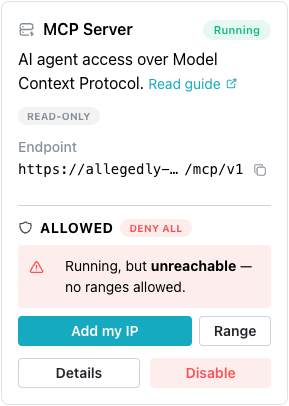
When enabled, the MCP Server pane updates to display:
- A color-coded status badge indicates the server's state: a
runningserver displaysRunning, and every other state displays as the raw API value, in lower case, such asfailedorpending. - The server's
Endpointappears with a copy icon when the server isRunning. - A
Detailsbutton takes you to theServicespage, where you find information about connecting to MCP clients. - A
Disablebutton allows you to stop the MCP Server. - The server's allowlist appears under
ALLOWED. A new MCP Server allows no ranges, and when the server is running, the pane readsRunning, but unreachable — no ranges allowed.
The MCP Server refuses every client connection until its allowlist has a
range; the database allowlist does not apply to the MCP Server. Select
Add my IP to add the address the console sees you connecting from, or
select Range to add another range. For more information, see
Controlling Network Access.
Disabling the MCP Server
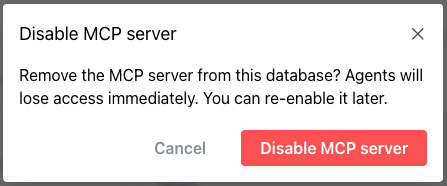
Select the Disable MCP Server button to stop the MCP Server. Disabling the
server does not change your client configuration, and every request from that
client fails when the server stops. A disabled endpoint may keep answering
for a few seconds before it stops; you can enable the server again later.
Understanding the Server State
The state indicator on the Services page is not a readiness signal. The
state changes to running when a deployment completes, regardless of what
the server is doing. The indicator can show:
-
Runningmeans the deployment completed. The endpoint returns503for roughly fifteen to twenty seconds after the deployment completes. -
Failedis a reliable state that requires attention; consult the Activity Log to review the cause.
To test server readiness, connect a client to the endpoint. If the client reports the server as unavailable, wait a few seconds and reconnect.
Reviewing MCP Server Details
Select the Details button on a running MCP Server to open the Services
page, which displays the server's status and configuration:
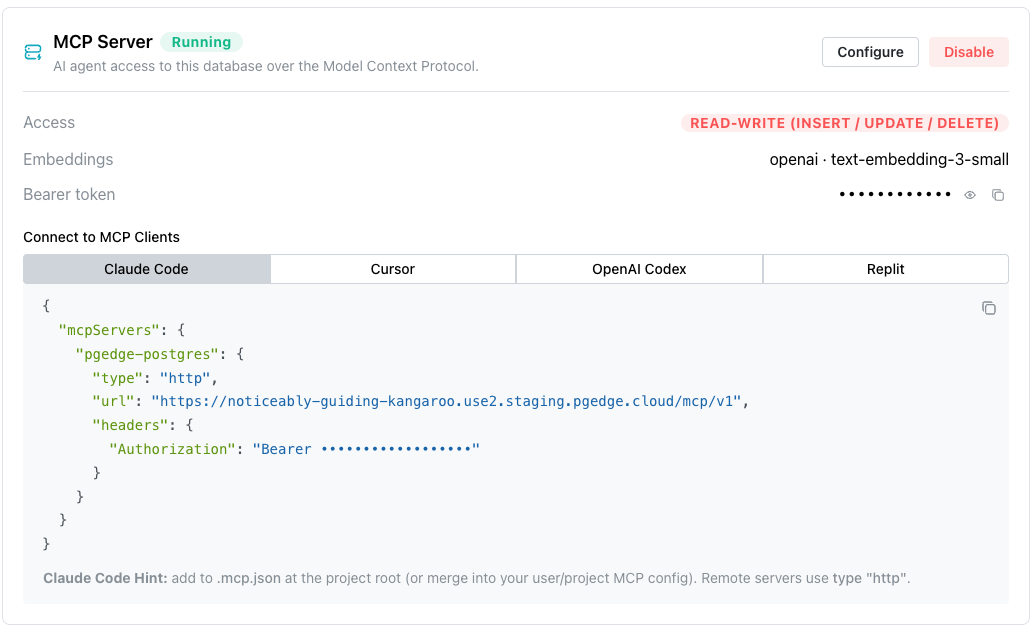
Accessdisplays if the server is read-only orREAD-WRITE (INSERT / UPDATE / DELETE), based on theAllow writessetting chosen when the server was enabled.Embeddingsdisplays the configured embedding provider and model (for example,openai · text-embedding-3-small), orDisabledifGenerate embeddingswas not enabled.Bearer tokenis the token used to authenticate MCP clients. Select the eye icon to reveal the token, or the copy icon to copy it. The token is the MCP Server's own credential and is not the database password.
Select Configure to modify these settings, or Disable to stop the server.
The connection endpoint appears in the Connect to MCP Clients panel only when
the server reports Running. The endpoint is the database's own domain with
/mcp/v1 appended to it, and includes no port; a pgEdge Starfleet service
is reached over HTTPS on port 443.
Connecting a Client to the MCP Server
The steps for connecting a client to the MCP Server vary by client and
platform. The Connect to MCP Clients section (below the server details on
the Services page) displays ready-to-use connection details for four
clients:
- Claude Code displays a JSON
block with
"type": "http", the endpoint as its URL, and anAuthorizationheader, its value the bearer token. Add the block to.mcp.jsonat your project root, or merge it into your user or project MCP config. - Cursor displays the same JSON without
the
typefield. Add the block to.cursor/mcp.jsonin the repository for one project, or to~/.cursor/mcp.jsonto make the server available everywhere. - OpenAI Codex displays a TOML block
declaring an
mcp_servers.pgedge_postgrestable with the endpoint as its URL, and anmcp_servers.pgedge_postgres.http_headerssub-table with theAuthorizationheader. Append the block to~/.codex/config.toml. The header block embeds the token directly, so it works however Codex is launched. - Replit has no
file to edit. The panel displays four values to copy one at a time: a
display name of
pgEdge Postgres, the MCP Server URL, a custom header name ofAuthorization, and its value, which is the wordBearerfollowed by the token. In Replit, add these values underIntegrations, thenMCP Servers, thenAdd MCP Server, thenTest and Save.
Select a client button to view the client-specific configuration. In the
displayed block the token is masked until you reveal it with the eye icon, but
the copy icon always includes the real token regardless of whether it is
revealed. For example, the Claude Code button displays JSON to add to
.mcp.json:
{
  "mcpServers": {
    "pgedge-postgres": {
      "type": "http",
      "url": "https://<your-domain>/mcp/v1",
      "headers": {
        "Authorization": "Bearer <your-bearer-token>"
      }
    }
  }
}
Select the copy icon (in the upper-right corner of the code block) to copy the configuration. A hint below the code block provides client-specific setup guidance.
Remote servers, such as your pgEdge Starfleet MCP Server, use
"type": "http".
Connecting Another Client
The server communicates using streamable HTTP at the endpoint, and
authenticates requests using a bearer token in the Authorization header.
Any client that accepts a URL and a header can use the same two values
displayed in the panel.
Example - Connecting the MCP Server to Claude Code
The Services page provides the information needed to connect the MCP
Server to Claude Code. Follow these steps to connect a deployed MCP Server
to Claude Code:
-
In the console, navigate to the
AI Servicespane, then selectDetailson your running MCP Server, or selectServicesin the navigation panel. -
Decide where to store the configuration:
- At your project root, in a
.mcp.jsonfile scoped to that project (shareable with teammates via version control if desired). If you plan to commit this file, do not hardcode your bearer token in it; Claude Code supports${VAR}environment-variable expansion in.mcp.jsonvalues, so you can reference an environment variable instead (for example,"Authorization": "Bearer ${PGEDGE_MCP_TOKEN}") and set the real token outside the file. - In your user-level Claude Code configuration, to make the server available across all your projects.
- At your project root, in a
-
Open the
.mcp.jsonfile (project or user-level) if it already exists, or create a new one. If you are creating a new file, you need only include the snippet provided on theClaude Codetab of theServicespage.If you already have an
mcp.jsonfile that lists other MCP Servers undermcpServers, take care not to overwrite them. -
Add the
pgedge-postgresentry. If the file is new, paste the whole block:{ "mcpServers": { "pgedge-postgres": { "type": "http", "url": "https://<your-domain>/mcp/v1", "headers": { "Authorization": "Bearer <your-bearer-token>" } } } }If
mcpServersalready has other entries, add the"pgedge-postgres": { ... }key alongside them, inside the existing object. -
Replace
<your-domain>/mcp/v1and<your-bearer-token>in the.mcp.jsonfile with the real values. -
Save the file.
-
Restart Claude Code, or start a new session in that project. Claude Code reads
.mcp.jsonon startup and prompts you to approve or trust the new MCP Server on the first connection. -
Verify the connection: run
/mcpin Claude Code to confirm thatpgedge-postgresappears in the list of active MCP Servers, then submit a natural-language query against your database to confirm the tool functions correctly.If the client reports the server as unavailable, the deployment may have finished moments earlier. Wait a few seconds and reconnect.
The
/mcpoutput displayspgedge-postgresasconnected, along with the number of tools it exposes: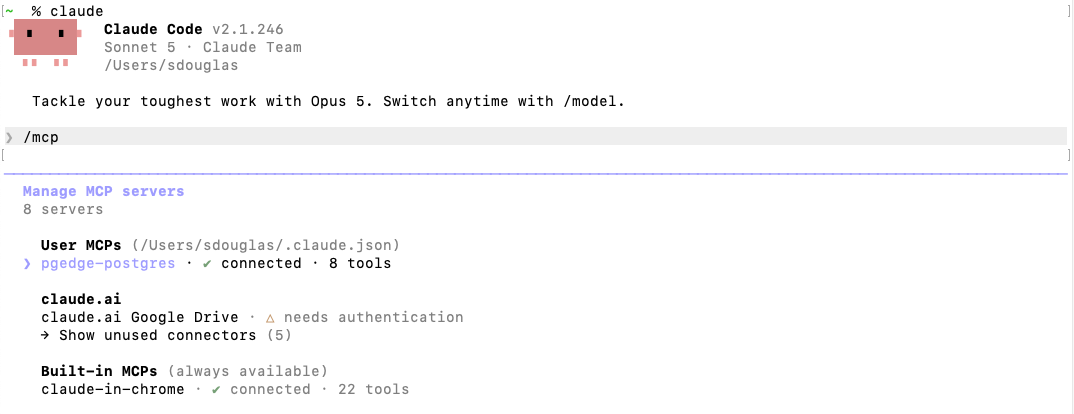
Now you can ask Claude Code to invoke SQL queries against your pgEdge Starfleet database:
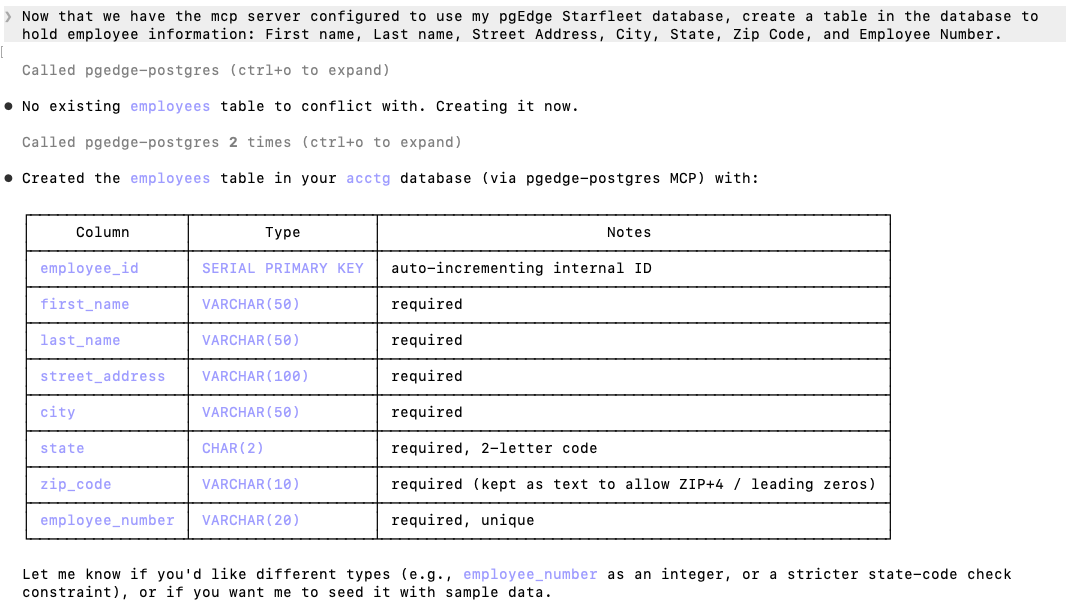
Connecting directly to the database with
psqlasapp(the owner of the table) confirms that the changes made through the MCP Server were applied to the underlying database: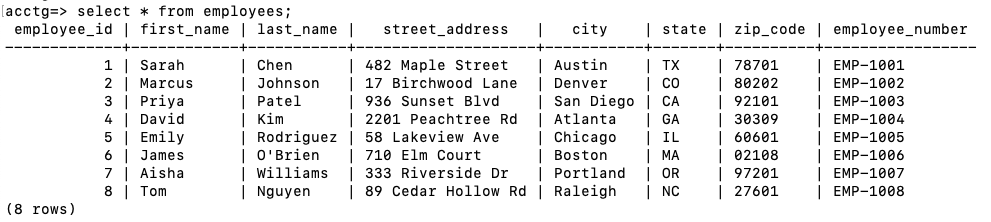
Best Practices to Avoid Prompt Injection
An agent that reads your data can be manipulated by actors using the text in your data. Anything the agent reads becomes text within its context window, and text in a table row can be interpreted as an instruction rather than as data. A support ticket, a user profile, a product description, or a comment field can embed wording directed at the agent rather than at a person. The agent has no reliable way to distinguish between the two.
When using the MCP Server:
- Ensure that
Allow writesremains off unless it is required. An agent that cannot write cannot damage your data. - Disable
Allow writesagain when the task that required write or delete access is complete. - Treat a write-enabled agent as a user with the
approle's privileges, not as a tool. Only enable write access on a database whose data you would be willing to expose to an untrusted client. - In a client that displays tool calls before executing them, review what the agent proposes before approving it.
- Exercise particular caution when accessing tables that contain text written by other users. Data you wrote yourself poses less risk than data submitted by other users.
How Password Changes Affect the MCP Server
Hint
The MCP Server reads its role's password once, at startup. Rotating
the password of the role it connects as restarts the server, causing
a short gap in service. That role is app_read_only, or app when
Allow writes is on; on a database with no app_read_only role, it
is always app. Your client configuration does not change.
The updated password authenticates only when the database status
returns to Available; the old password may still work until then.
Using the MCP Server on a Branch
If your database runs the MCP server, a branch of the database runs its own MCP
server, with its own address and a separate MCP token. The source database's
address and token do not work against the branch, so an MCP client needs the
branch's own token and address. The MCP server's card on the branch's page
displays the branch's Endpoint and Bearer token. The branch's MCP server
copies this server's allowlist when the branch is created, and that copy
cannot be changed, so add a client's address here before you create the
branch. See
Creating and Managing Branches.
Troubleshooting
-
Unable to load servicesis displayed with the body text:We could not load this database. Refresh the page to try again.The MCP and RAG Servers keep running while the console cannot read them, so this indicates a console read failure rather than an outage of the services themselves.
-
Failed to update MCP Server.is displayed when a service change is refused. This is the fallback text, displayed when the API sends no message of its own.A service change needs the database in an
AvailableorDegradedstate, and each service change writes oneupdate-managedtask, so the Activity Log records both failed and successful modification attempts.