Enabling and Using the RAG Server
The AI Services pane on your database's management page displays icons you
can use to deploy available services on your database.

Select Enable RAG to deploy the server. When the service is deployed, select
the Details button to manage the server.
The pgEdge RAG Server is an API server that performs Retrieval-Augmented Generation (RAG) over content stored in a Postgres database using pgvector. Consider using a RAG Server when you have a well-defined use case with predictable query patterns.
Enabling the RAG Server
Select the AI Services pane, then select Enable RAG to begin.
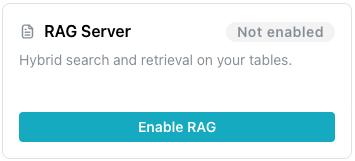
To enable a RAG Server, select the Enable RAG icon in the RAG Server pane.
The button is active only while the database status is Available or
Degraded. On a database in any other status, hovering over the button
displays Database not available.
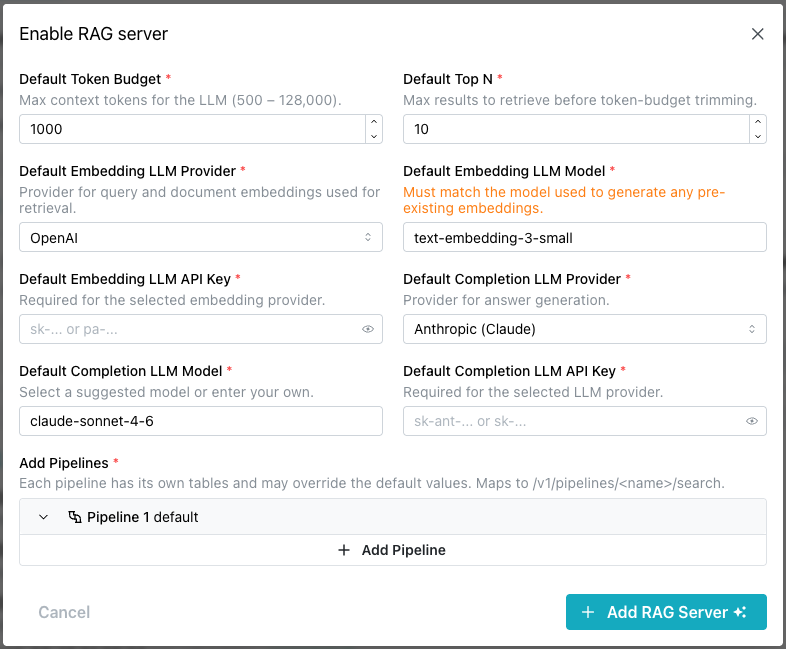
When the Enable RAG Server popup opens, provide details about the RAG Server
deployment:
- The
Default Token Budgetfield sets the maximum number of context tokens allowed for the LLM (500 - 128,000). The default value is1000. - The
Default Top Nfield sets the maximum number of results to retrieve before token-budget trimming. The default value is10. - The
Default Embedding LLM Providerfield selects the provider used for query and document embeddings during retrieval. - The
Default Embedding LLM Modelfield selects the embedding model to use. Available models depend on the selected provider (for example,text-embedding-3-smallfor OpenAI). This must match the model used to generate any pre-existing embeddings. - The
Default Embedding LLM API Keyfield provides the API key required for the selected embedding provider. - The
Default Completion LLM Providerfield selects the provider used for answer generation. - The
Default Completion LLM Modelfield selects the completion model to use. Select a suggested model, or enter your own. - The
Default Completion LLM API Keyfield provides the API key required for the selected completion LLM provider. - The
Add Pipelinesfield defines one or more pipelines. Each pipeline has its own tables, can override the default values, and is queried at/rag/v1/pipelines/<name>.
pgEdge Starfleet supports two embedding providers: OpenAI and Voyage.
pgEdge Starfleet does not provide infrastructure for self-hosted model
serving, so Ollama is not offered; Anthropic does not provide an embedding
model, so it is not available either.
pgEdge Starfleet supports two completion providers: Anthropic (Claude)
and OpenAI.
When you select OpenAI for both the embedding provider and the completion
provider, the two API key fields collapse into a single
Default OpenAI API Key field. The value you enter in that field is used
for both providers.
Note
Neither the console nor the platform checks an API key when you enable
the server. A server configured with a bad key still reaches Running,
and the bad key surfaces only when a pipeline query fails. Check the
key before enabling the server rather than relying on the status badge.
Select +Add Pipeline to expand the dialog and define one or more pipelines
used by the RAG Server.
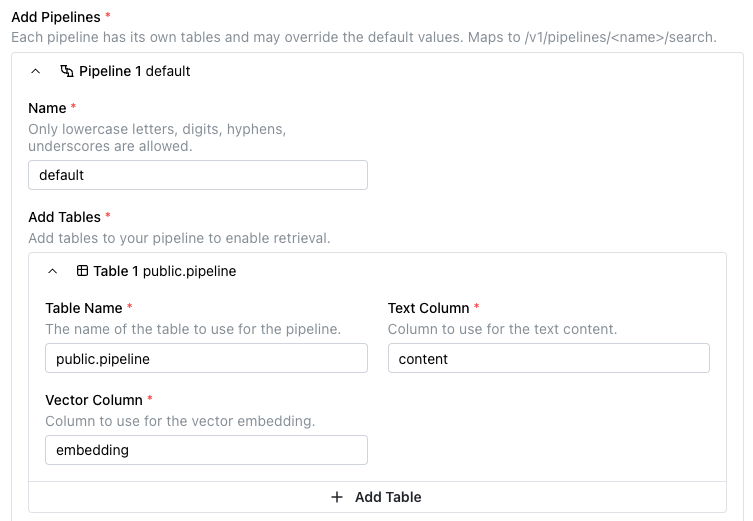
For each pipeline, provide:
- A unique name in the
Namefield. Only lowercase letters, digits, hyphens, and underscores are allowed. The console strips any other character as you type. - At least one table, under
Add Tables. A pipeline retrieves across every table you add to it, and theAdd Tablebutton appends another. Each table is its own collapsible block, and a block can be removed as long as more than one remains.
For each table in a pipeline, provide:
- The name of the table or view to use, in the
Table Namefield. Qualify the name with its schema, for examplepublic.documents. - The name of the column containing the text content to be indexed and
searched, in the
Text Columnfield. A new table block defaults tocontent. - The name of the column containing the vector embeddings (using pgvector) for
that content, in the
Vector Columnfield. A new table block defaults toembedding.
When you set default values for the RAG Server, individual pipelines can omit
the corresponding fields and inherit those defaults. A pipeline can also
override specific fields while still inheriting the others. Use the Override
Default Values toggle to expand the dialog and provide the pipeline-specific
values you want to override:
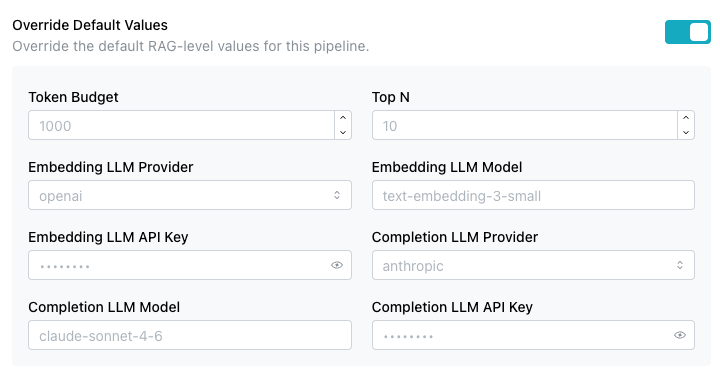
Optionally, provide the following details:
- The
Token Budgetfield overrides the maximum number of context tokens allowed for the LLM for this pipeline. - The
Top Nfield overrides the maximum number of results to retrieve before token-budget trimming for this pipeline. -
The
Embedding LLM Providerfield overrides the provider used for query and document embeddings during retrieval for this pipeline (OpenAIorVoyage). -
The
Embedding LLM Modelfield overrides the embedding model to use for this pipeline. - The
Embedding LLM API Keyfield overrides the API key used for the selected embedding provider for this pipeline. -
The
Completion LLM Providerfield overrides the provider used for answer generation for this pipeline (Anthropic (Claude)orOpenAI). -
The
Completion LLM Modelfield overrides the completion model to use for this pipeline. - The
Completion LLM API Keyfield overrides the API key used for the selected completion LLM provider for this pipeline.
Use the Advanced Settings toggle to expand the dialog and configure hybrid
search, vector weighting, and a custom system prompt for the pipeline:
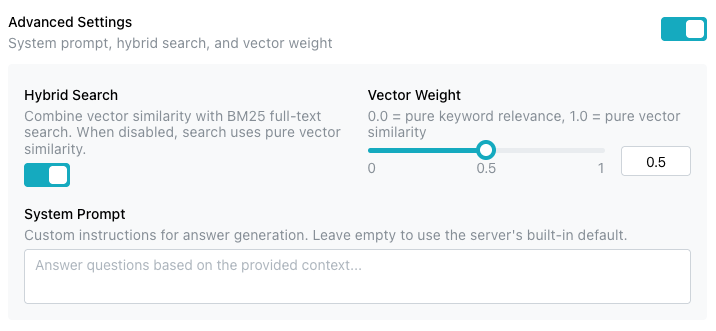
Provide the following details:
- The
Hybrid Searchtoggle combines vector similarity with BM25 full-text search. When disabled, search uses pure vector similarity. Hybrid search is enabled by default. - The
Vector Weightslider sets the balance between keyword and vector relevance, from0.0(pure keyword relevance) to1.0(pure vector similarity). The default value is0.5. - The
System Promptfield provides custom instructions for answer generation. Leave the field empty to use the server's built-in default prompt, which instructs the model to answer questions based on the provided context.
When you are finished, select the Enable RAG Server button to deploy the
RAG Server.
Enabling, configuring, or disabling the RAG Server requires the database to
be Available or Degraded, and appears in the Activity Log as an
update-managed task. Every service change shares that one task name, so the
Activity Log cannot tell a RAG change from an MCP change.
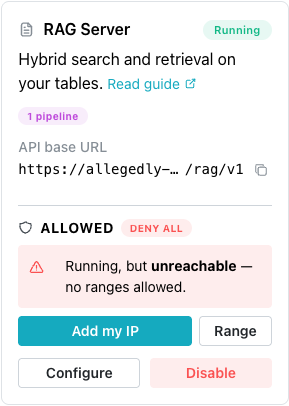
When enabled, the RAG Server pane updates to display:
- A status badge indicates the server's state: a
runningserver displaysRunning, and every other state displays as the raw API value, in lower case, such asfailedorpending. - The server's
API base URLappears with a copy icon when the server isRunning. - A
Configurebutton opens theConfigure RAG Serverdialog, where you can modify the RAG Server deployment. - A
Disablebutton allows you to stop the RAG Server. - The server's allowlist appears under
ALLOWED. A new RAG Server allows no ranges, and when the server is running, the pane readsRunning, but unreachable — no ranges allowed.
The database allowlist does not apply to the RAG Server; the RAG Server
will refuse client connections until a range is provided. Select
Add my IP to add the address the console sees you connecting from, or
select Range to add another range. For more information, see
Controlling Network Access.
Hint
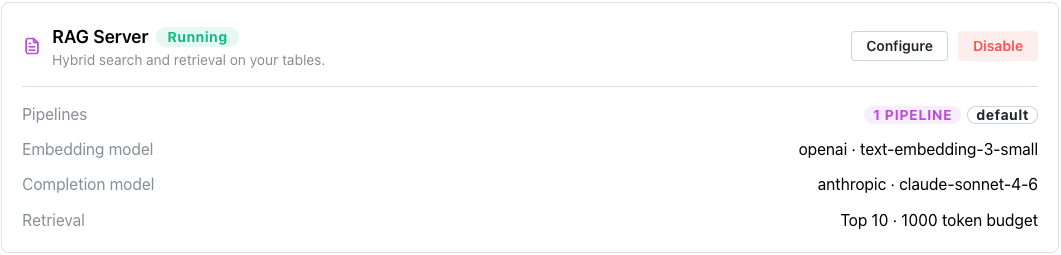
The Services page also displays detailed information about the RAG
Server; to open it, select Services under the database name in the
navigation pane.
Disabling the RAG Server
You can disable the RAG Server from either the Services page or the RAG
Server pane by selecting the Disable button.
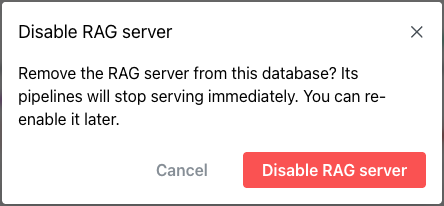
When the popup opens, select the Disable RAG Server button to stop the
RAG Server.
RAG Server State
The state badge on the RAG Server pane is not a readiness signal. The
state changes to running when the deployment completes, regardless of
what the server is doing.
Runningmeans the deployment completed, not that the server answers.Failedis a reliable state that requires attention; aRunningbadge proves nothing on its own.
The RAG Server exposes no handshake; query a pipeline to determine whether it is ready.
Reviewing RAG Server Details
When the RAG Server is running, its pane displays the server's status and configuration:
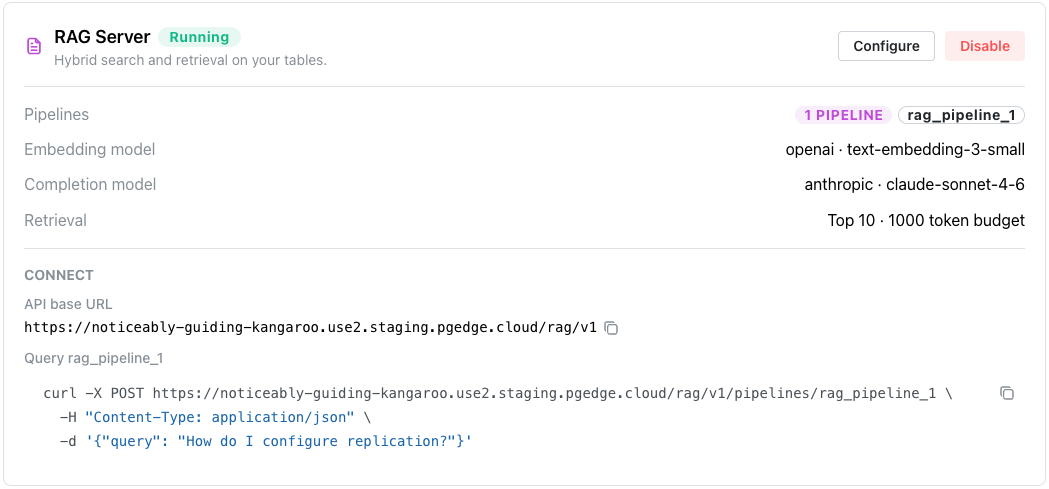
Pipelinesdisplays how many pipelines are configured, and their names.Embedding modeldisplays the configured embedding provider and model (for example,openai · text-embedding-3-small).Completion modeldisplays the configured completion provider and model (for example,anthropic · claude-sonnet-4-6).Retrievaldisplays the token budget and the Top N result count used during search.- The
Connectsection provides the API base URL and a ready-to-usecurlcommand for querying a pipeline.
Select Configure to change these settings, or Disable to stop the server.
Using the RAG Server
The API base URL is your database's own domain with /rag/v1 appended to it,
and a pipeline is one segment below it; a query is a POST to
https://<your-domain>/rag/v1/pipelines/<pipeline-name> with a JSON body.
A pipeline name that the server does not recognize answers 404.
After adding a RAG Server to your database, you can use the pgEdge Docloader to load your documents into your database. The Docloader converts HTML, Markdown, and reStructuredText into a searchable table form:
pgedge-docloader --config docloader.yml
After loading the table, you can query your pipeline via the REST API. For example:
curl -X POST https://<your-domain>/rag/v1/pipelines/my-docs \
  -H "Content-Type: application/json" \
  -d '{"query": "How do I configure replication?"}'
The RAG Server retrieves the most relevant document chunks using hybrid search (vector similarity and BM25 keyword matching), then passes them to the LLM to generate a grounded answer.
Note
The full API docs and an interactive demo are available at docs.pgedge.com/pgedge-rag-server.
Example - Building a Custom Knowledgebase with the RAG Server
This example demonstrates loading a set of Markdown documentation into
your pgEdge Starfleet database and querying that content through the RAG
Server. The RAG Server only generates embeddings for incoming queries;
the embedding column on your table must be populated separately before
the server can retrieve results from it.
-
Connect with
psqlas theappuser, using the connection string from theApplicationtab of your database'sConnectpane (see Connecting with psql). Theappuser owns the database, so the tables it creates belong toapp. For example:PGSSLMODE=require PGPASSWORD=<your-app-password> psql -U app \ -h <your-domain> -p <your-port> -d <your-database> -
Create a table to store the documentation content, with a
pgvectorcolumn sized for your embedding model.appcannot install thevectorextension, so installvectorfirst with theAdmintab's connection string, as Installing Supported Extensions on a pgEdge Starfleet Managed Database describes. Then run the following asapp:CREATE TABLE documents ( id SERIAL PRIMARY KEY, title TEXT, content TEXT NOT NULL, filename TEXT UNIQUE NOT NULL, embedding vector(1536), created_at TIMESTAMP DEFAULT CURRENT_TIMESTAMP ); CREATE INDEX ON documents USING ivfflat (embedding vector_cosine_ops); -
Use the pgEdge Docloader to load your documentation's Markdown files into the
documentstable. Point--sourceat the folder containing your docs. Reuse theHost,Database name, andUservalues from theApplicationtab:export PGPASSWORD=<your-app-password> pgedge-docloader \ --source ./docs \ --db-host <your-db-host> \ --db-name <your-db-name> \ --db-user app \ --db-sslmode require \ --db-table documents \ --col-doc-title title \ --col-doc-content content \ --col-file-name filenameNote
pgedge-docloaderis an open-source command-line tool; install it by cloning and building the pgEdge Docloader repository:git clone https://github.com/pgEdge/pgedge-docloader.git cd pgedge-docloader make build make install -
Populate the
embeddingcolumn for each row. Before populating the column, enable the MCP Server withGenerate embeddingsandAllow writesturned on. If you connect an AI client (such as Claude Code), you can ask it to:- find the rows in
documentswhereembedding IS NULL. - call
generate_embeddingon each row'scontentto compute a vector. UPDATEthat row, storing the vector in itsembeddingcolumn.
- find the rows in
-
Navigate to the RAG Server details page. In the console, open the
AI Servicespane and selectDetailson your running RAG Server, or selectServicesfrom the navigation pane. UnderConnect, note the API base URL and the pipeline name. -
If the RAG Server's pipeline is not already configured to use this table, select
Configure, open the pipeline's table block underAdd Tables, then setTable Nametopublic.documents,Text Columntocontent, andVector Columntoembedding. -
Query the pipeline with a question that your documentation should answer:
curl -X POST https://<your-domain>/rag/v1/pipelines/<pipeline-name> \
  -H "Content-Type: application/json" \
  -d '{"query": "How do I configure replication?"}'
The response is a JSON payload with a generated answer and the
sources the RAG Server retrieved, which should reference content
from the documentation you loaded in step 3.
Troubleshooting
-
Unable to load servicesappears in a red panel with the body text:We could not load this database. Refresh the page to try again.The RAG and MCP Servers keep running while the console cannot read them, so this indicates a console read failure rather than an outage of the services themselves.
-
Failed to update RAG Server.appears when a service change is refused. This is the fallback text, displayed when the API sends no message of its own.A service change requires the database to be in an
AvailableorDegradedstate, and each service change writes oneupdate-managedtask, so the Activity Log records both failed and successful modification attempts.