Restoring from Backup
The Backups pane on your database's management page lists the backups
taken of your database. Each backup is either a hot backup (the
fastest to restore from) or a durable backup (kept apart from the
database's own storage and slower to restore).
A hot backup is taken daily, and whenever you create a branch of the
source database. A durable backup is taken daily as well, but only
on a database whose plan includes durable backups.
Backups are taken on a schedule. The console has no button for taking one, and you cannot delete a backup or change how long one is kept. Each backup entry displays:
- the backup ID.
- a tag indicating whether the backup is a
hotordurablebackup. - the backup status (for example,
completed). - how long ago the backup was taken, and how long it took to run.
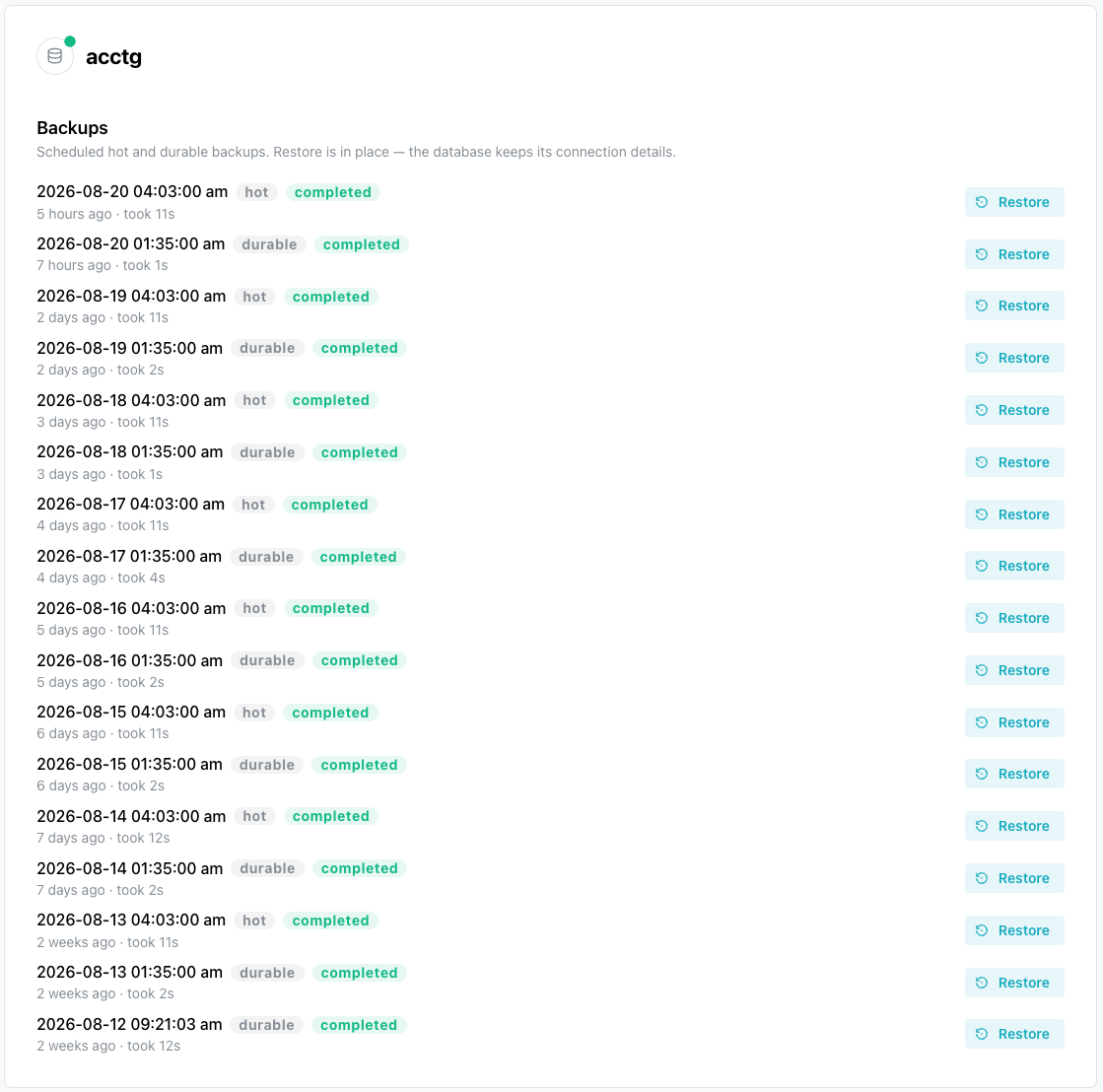
The Restore button is disabled on any backup whose status is not
completed.
A backup that is still running is not a restore point yet; read its
status in this list rather than the outcome of its task in the Activity
Log, because a backup-managed task can read succeeded while the
backup record it produced is still pending.
The database itself must be available or degraded. A restore is
refused against a database that is creating, modifying, or already
busy with an earlier task.
Restoring Your Database
Select the Restore button (located to the right of a backup) to restore
your database to the selected backup. The Restore from backup popup
opens, confirming the date and time of the backup you selected.
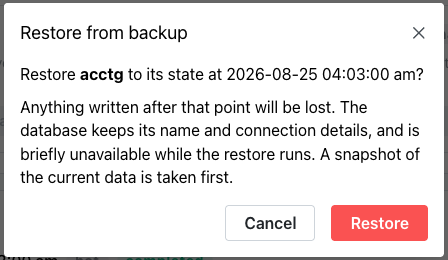
Select Restore to confirm, or Cancel to close the popup without
restoring the database. The database retains its name and connection
details, and is briefly unavailable while the restore runs. The restore
takes a hot backup of the current data before it begins.
The restore happens in place and runs asynchronously: the API returns
the database in modifying status immediately, the database recovers
in the background, and the console displays Modifying until the
restore finishes. The restore replaces the current data, so anything
written since the backup was taken no longer exists. Wait for the
status to reach Available.
When you confirm, a Restore in progress popup opens, showing a
progress bar and a checklist of restore steps:
Configuring SystemTaking Pre-Restore SnapshotProvisioning Restored DatabaseWaiting for Database
The console checks off each step as it completes:
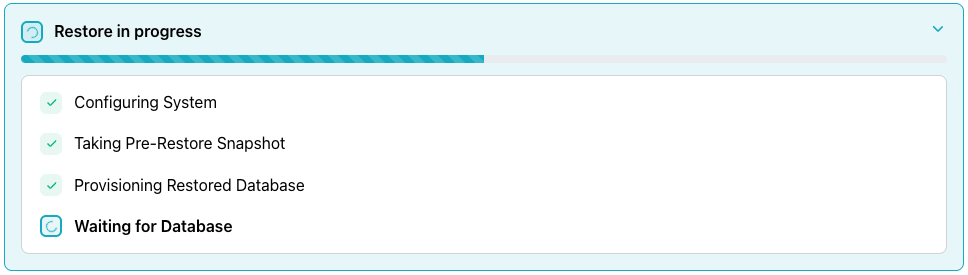
The checklist displays the steps reported for the restore task, so a
restore can list more of them, including Repointing Backups,
Cutting Over Connection, and Retiring Old Incarnation.
In the Activity Log, the operation appears as restore-managed.
The Backup Taken Before the Restore
Before replacing anything, the restore takes a hot backup of the database in
its current state, so a restore run by mistake can itself be undone. This step
is mandatory: if the backup cannot be taken, either because it fails outright
or because another backup is already running, the restore fails rather than
proceeding.
That failure never appears as an error on the original restore request,
because by the time the pre-restore backup runs, the API has already accepted
the request and the database is already modifying. Instead, the failure
surfaces on the restore's task in the Activity Log.
The pre-restore backup itself is easy to miss, because:
- it does not appear in the
Backupspane until up to a minute after the restore starts. - nothing labels it as the pre-restore backup; the
hotbackup created when the restore started is the one to look for. - it is not an archive, only a way back from a mistake caught shortly afterward, not a restore point to rely on later.
Troubleshooting
Could not start the restore. is a notification meaning the API refused
the restore request. This text is the fallback message; the console displays
the API's own message if it sends one. A restore requires the database to be
available. Wait for the database to return to an available status, then
try again.